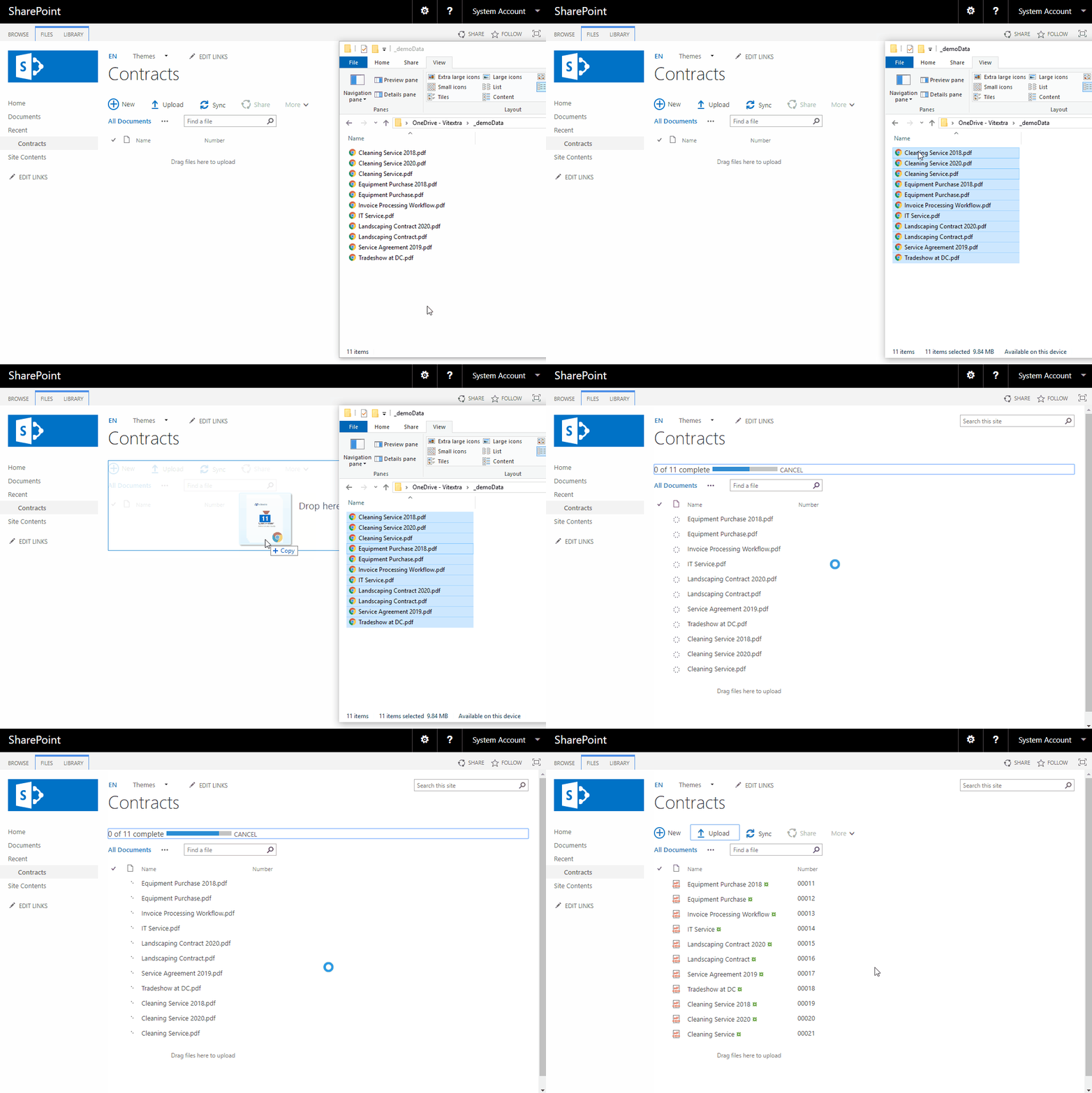
Create Cross-Site Sequences with Number Generator
This article describes how to create and use cross-site sequences to generate unique numbers for SharePoint documents and list items.
Introduction
The Vitextra Number Generator lets you set up sequences for generating unique numbers.
All Vitextra sequences are stored in a generic SharePoint list located on the root web of the site collection.
Prerequisites
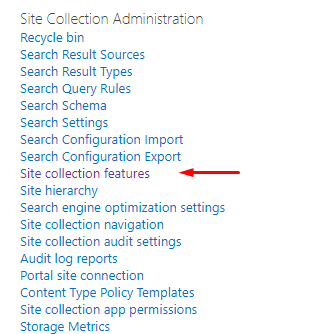
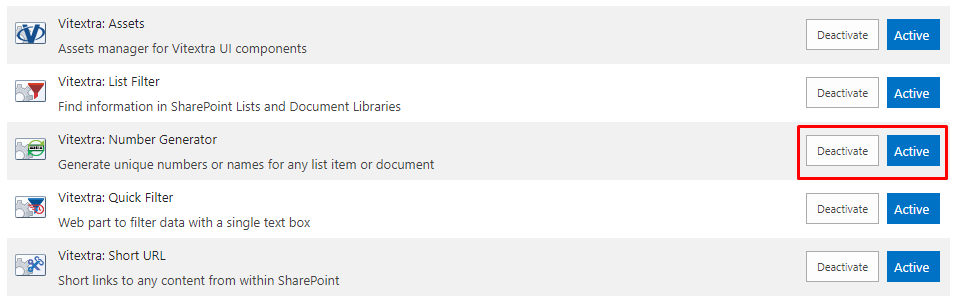
To set up and use sequences, make sure the Vitextra: Number Generator feature is activated at the site collection level.
Go to Site Settings and click Site collection features:
Scroll down to the feature and click Activate if it isn't activated yet:
Create Sequence
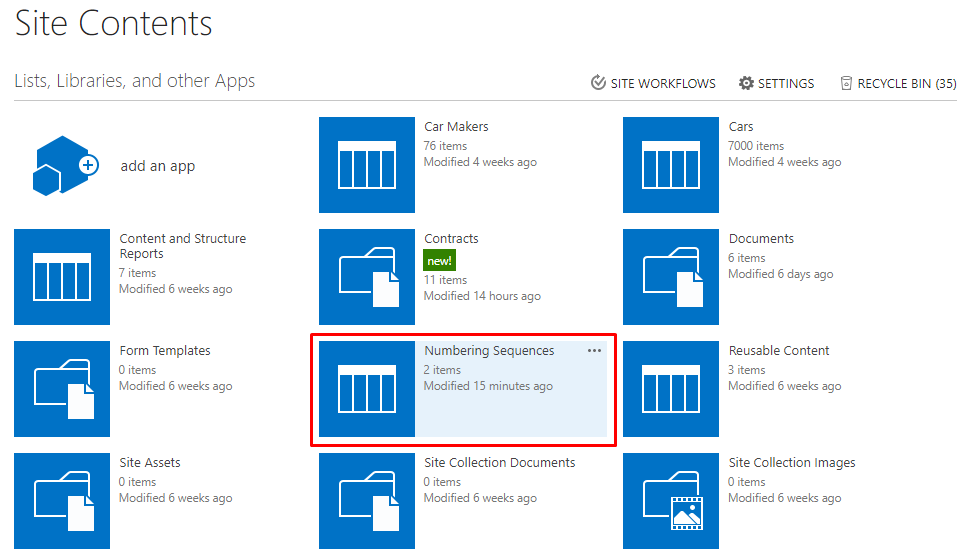
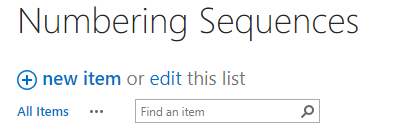
On the root web of the site collection where you want to use sequences, go to Site Contents and open the Numbering Sequences list:
Click New Item:
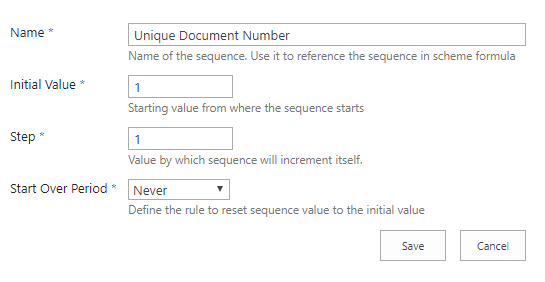
Each sequence has the following attributes:
- Name — used to reference the sequence in numbering schemes.
- Initial Value — the value the sequence starts from.
- Step — the value by which the sequence increments.
- Start Over — the rule for resetting the sequence to its initial value.
❗ Important
The name of the sequence is the only way to reference it in a numbering scheme.
Start Over Options
There are four options for the rule that resets the sequence:
- Monthly — reset the sequence on the first day of each month.
- Quarter — reset the sequence on January 1, April 1, July 1, and October 1.
- Yearly — reset the sequence on January 1.
- Never — the sequence is never reset.
The default option is Never.
Enter the field values and click Save to create the sequence.
Once the sequence is created, you can use it in a numbering scheme.
Create Numbering Scheme
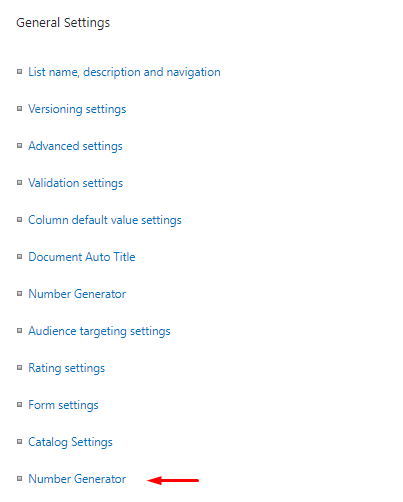
To create or modify a numbering scheme, open the list or document library where you want automatic numbering and go to its settings.
Click Number Generator under the General Settings heading:
In the list of existing schemes, click New Item:
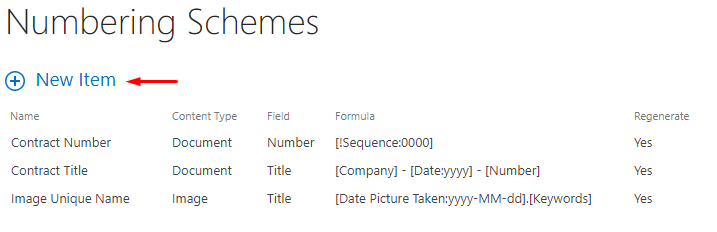
Enter a name for the new scheme and choose the field where Number Generator will write the value.
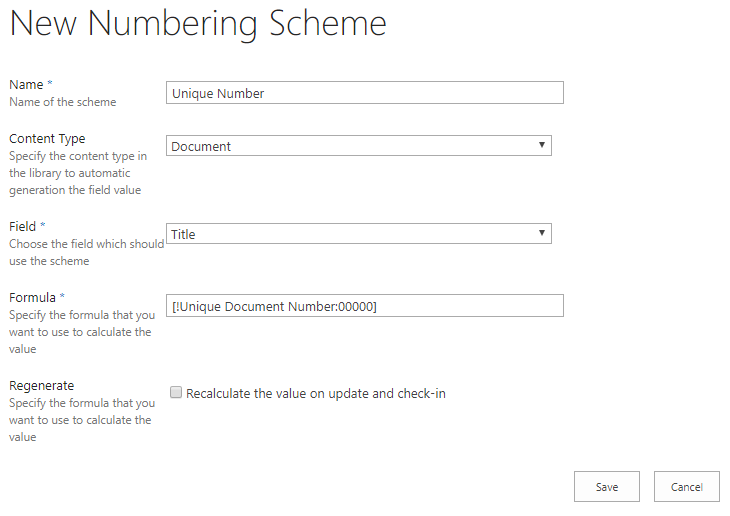
To use a sequence in a formula, reference it by typing its name with a ! prefix:
[!Unique Document Number:00000]
The ! character indicates a sequence reference, and :00000 means the number must be five characters long. For more about formatting, see the Format Column or Sequence Value in Numbering Scheme article.
Click Save to create the scheme.
💡 Tip
You can include any text you need in the formula. Number Generator does not modify it.
Create schemes for any other lists and libraries where you want to use the sequence for numbering.
Uploading Documents
Once the scheme is set up, you can create new list items or upload documents. Number Generator automatically populates the column with the sequence value.