Create a Short URL for a SharePoint Page
This article describes how to create a shortened link to a SharePoint page with the Vitextra Short URL add-on.
Introduction
Vitextra Short URL lets you create and use shortened URLs for any content within SharePoint, as well as for external content.
For example, the following link to a folder in a SharePoint document library:
https://portal.vitextra.com/Products/OnPrem/Shared%20Document/AllItems.aspx?RootFolder=%2FShared%20Documents%2FSales%20Literature&FolderCTID=0x012000ECFC18C12C0E514D97CB9F8300A32525&View=%7BC25AA6EC-0806-4A71-86FB-2B9583C2A208%7D
can be shortened to:
https://portal.vitextra.com/salesdocs
Create Short URL
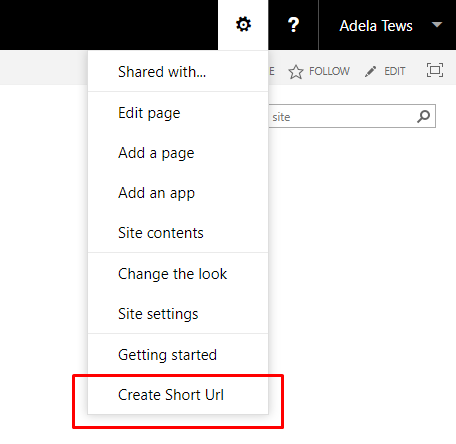
To create a new short URL for the current page, go to Site Actions and click Create Short URL:
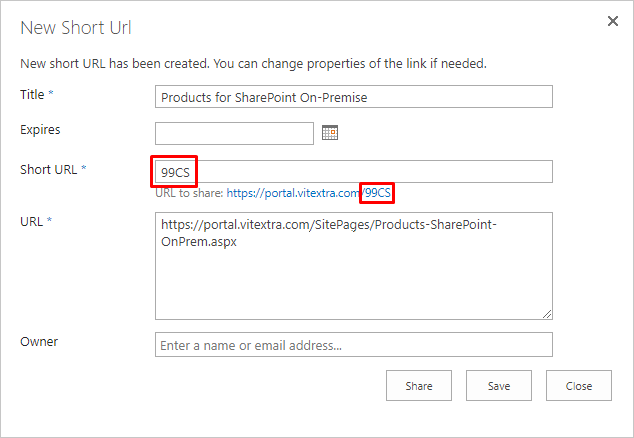
After you select Create Short URL, the Short URL dialog opens, where you can edit the URL's properties if needed.
📝 Note
Vitextra Short URL automatically creates a new shortened hyperlink if there isn't already an active one for the current page.
Change URL
In the Short URL dialog, you can change the URL and other properties, such as the expiration date and owner.
❗ Important
The Short URL must not contain special characters such as ?, #, /, or &.
For each short URL, you can configure the following settings:
- Expires — the date after which the URL stops working.
- Owner — the person who owns the URL and can be contacted for suggestions and feedback.
💡 Tip
Leave the Expires field empty for a permanent short URL.