Manage Your Vitextra Subscription and Licenses
Vitextra provides subscription-based products for SharePoint Online and Microsoft Teams. This article describes how to manage your subscription to Vitextra products.
📝 Note
You don't need to purchase a Vitextra product to use the trial version. The free 14-day trial starts automatically when you deploy the product to your Microsoft 365 environment.
View Subscriptions
Sign in to your account and go to Account → My Subscriptions. This page shows all your subscriptions, both current and canceled.
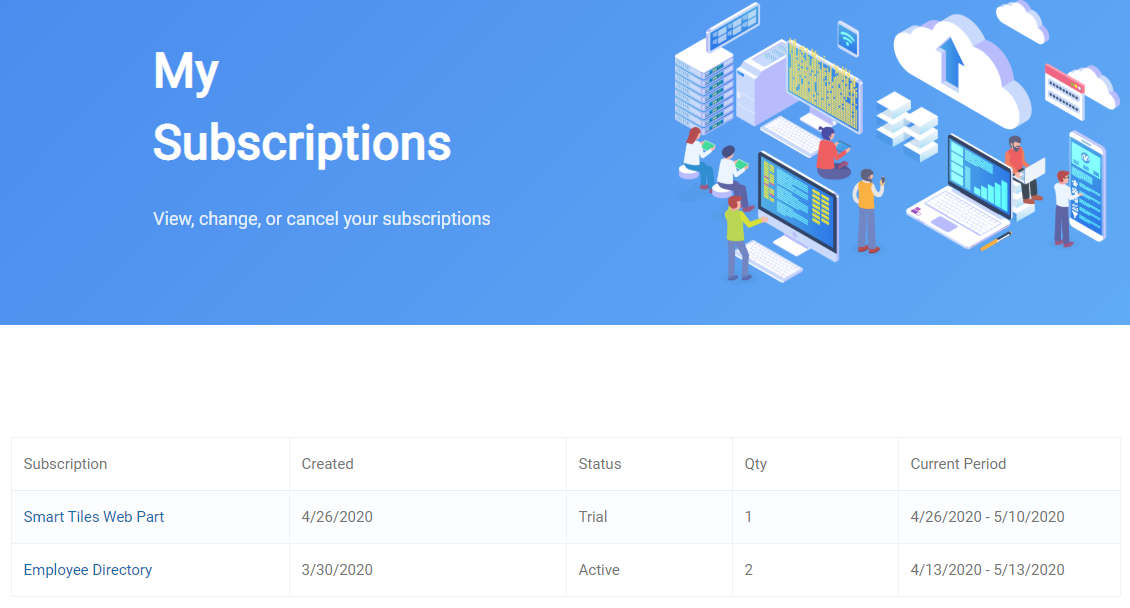
Select a subscription to view its details and manage it.
Manage Subscription
On the subscription page, you can manage license assignments, change the number of licenses, or cancel the entire subscription.
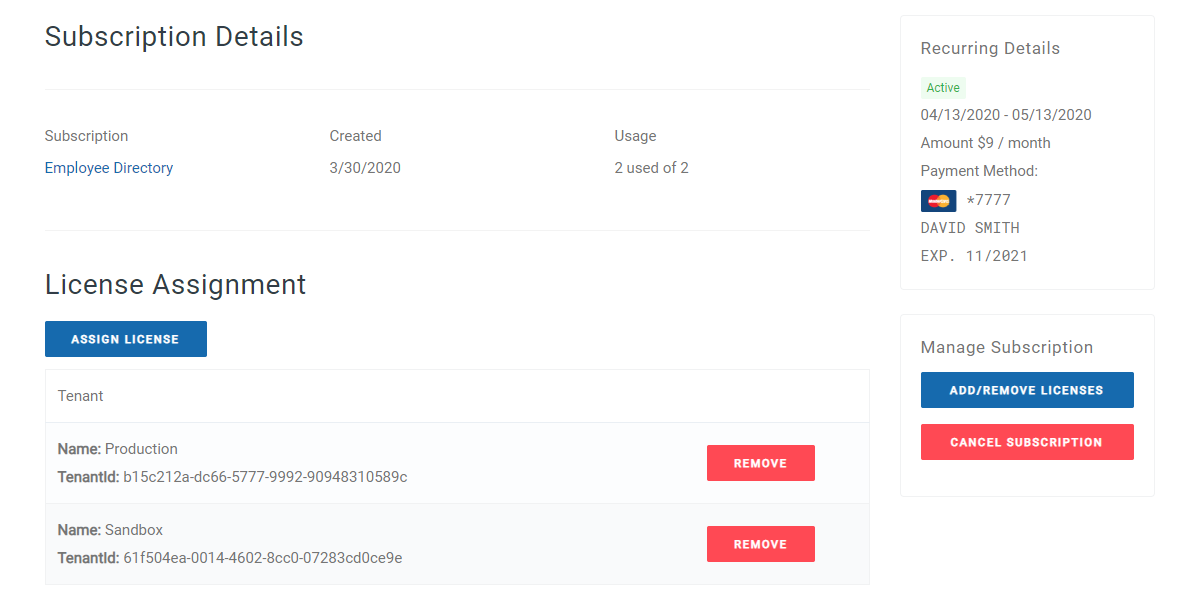
Add or Remove License
To add a new license or remove an unused one:
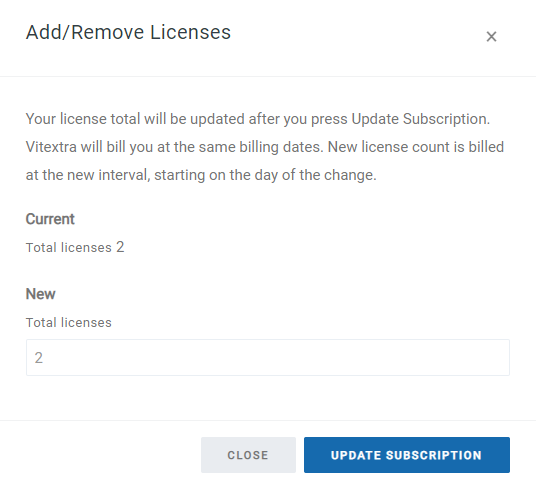
- Click the Add/Remove licenses button under the Manage Subscription heading.
- Use the up/down arrows to change the number of licenses.
- Click Update Subscription to submit the changes.
❗ Important
You cannot remove a license from a subscription while it is assigned to a Microsoft 365 tenant.
Assign License
A license must be assigned to each Microsoft 365 tenant where the product is used.
To assign a license to your tenant:
- Go to Assign License.
- Enter the name and ID of your tenant.
- Click Submit.
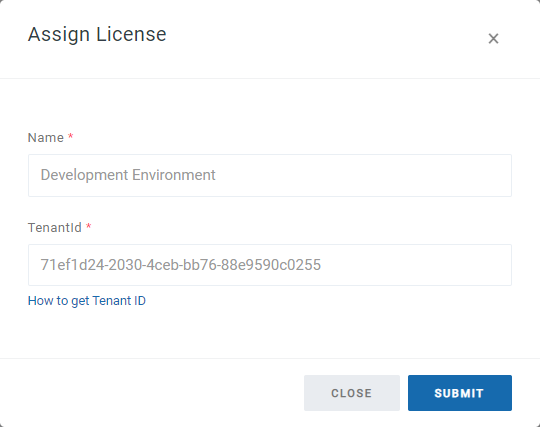
The newly assigned license appears in the list immediately.
Remove License
You can unassign a license from a tenant.
To remove an assigned license:
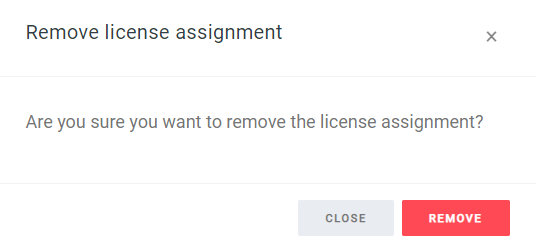
- Click Remove next to the assignment you want to remove.
- Click Remove again to confirm.
Cancel Subscription
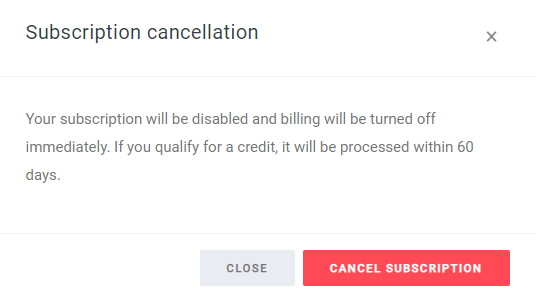
To cancel a subscription, go to Cancel Subscription and confirm.
What happens when you cancel a subscription
If you cancel your subscription before the end of your term, it moves immediately to an inactive state, and billing is turned off right away.
❗ Important
You cannot reactivate a canceled subscription. To keep using the product, you need to set up a new one.