Tile-Based Navigation in SharePoint with Smart Tiles
Introduction
Good navigation is essential for keeping a SharePoint Online site useful and engaging. The Smart Tiles web part provides tile-based navigation, so you can build clear, visually appealing layouts that make important content easy to reach.
This article covers the main features of Smart Tiles and how to add and configure the web part on your pages.
📝 Note
Smart Tiles does not support classic pages. Use it only with the new Modern UI.
Adding Smart Tiles
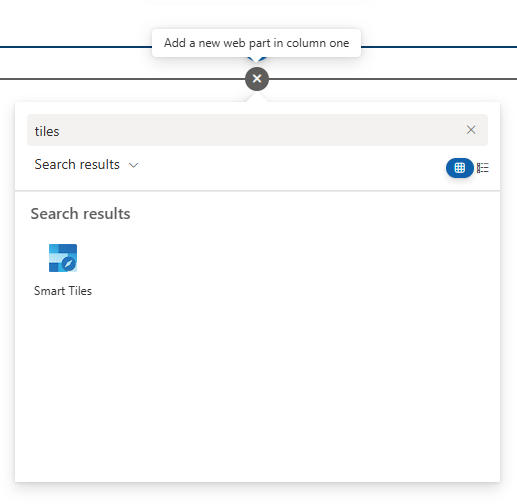
Open the page where you want to add tile navigation in edit mode. Hover above or below an existing section until a line with a plus sign appears, then click it to open the web part gallery. Find the "Smart Tiles" web part by browsing or using the search bar, and click it to add it to the page.
💡 Tip
Smart Tiles can fill the full width of the screen, making the most of the available space on wide displays.
Web Part Configuration
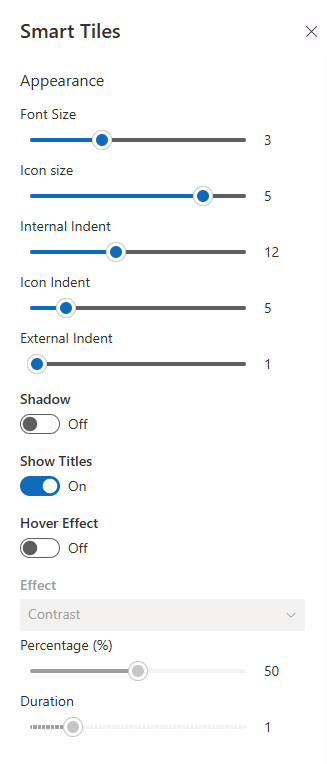
After adding the Smart Tiles web part, click the Edit web part button to open a configuration panel on the right, where you can customize the settings.
Appearance Settings
The Smart Tiles web part offers a range of options for customizing the appearance of the tiles, so you can match your navigation to your organization's branding and preferences.
- Font Size: Adjust the size of the tile caption, from 13px to 42px, for readability across devices.
- Icon Size: Control the size of the tile icon, from 2em to 5em.
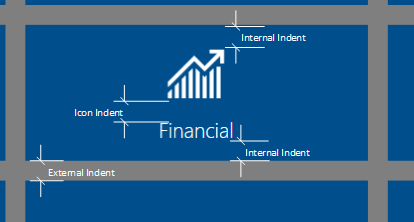
- Internal Indent: Set the tile padding, in pixels, for a balanced look.
- Icon Indent: Set the icon's bottom margin, in pixels, for visual separation.
- External Indent: Set the tile margin, in pixels, to control spacing between tiles.
- Shadow: Show or hide a drop shadow under the icon for added depth.
- Show Titles: Show or hide the tile titles for a cleaner look.
- Hover Effect: Add effects that activate when the user hovers over a tile.
Tiles
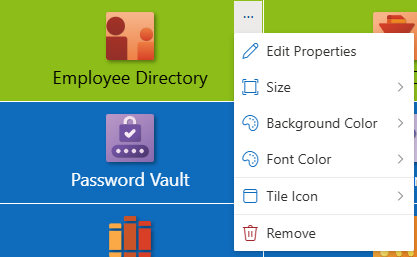
To manage a tile, open its context menu.
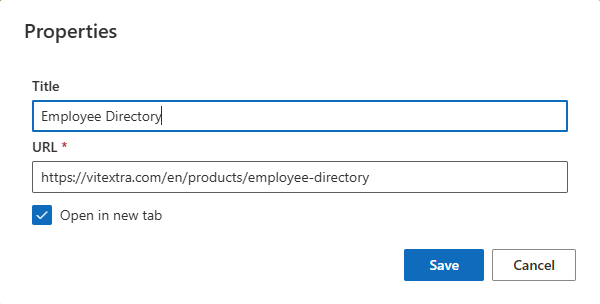
The properties of each tile are described in the following table:
| Property | Description |
|---|---|
| Caption | Title of the tile, always displayed on one line for clarity. |
| URL | The hyperlink associated with the tile, directing users to relevant content. |
| Color | The tile color, set to the current theme accent color or one of the predefined colors. |
| Size | The vertical size of the tile. |
| Icon | Choose from four predefined icon sets: Fluent UI Icons, Azure Apps, Microsoft 365 Apps, and Vitextra Apps. |
| Open in new tab | Open the linked content in a new browser tab. |
Additional Settings
Beyond the basic tile properties, you can set the text and icon color. Text can be black or white for good contrast against the tile background. If you don't choose a color, the text color is derived from the tile color, keeping the design in harmony.
📝 Note
The icon color option applies only to Fluent UI icons; other icon sets ignore this setting.
Adding a Full-Width Section (Optional)
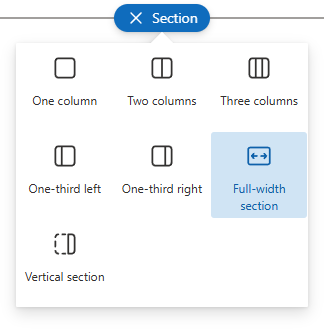
To use Smart Tiles in a full-width section, first add a full-width section to the page. This layout maximizes the visual impact of your tiles.
Click the + icon on the left side of the page to add a new section, then choose Full-width section from the layout options so your content can span the entire page width.
Adding the Web Part to the Section
To place the Smart Tiles web part in the full-width section, move it from a regular section into the full-width one to take full advantage of the screen space.

With these steps, you can create clear, attractive tile navigation in SharePoint Online.
Summary
Smart Tiles brings visual, tile-based navigation to SharePoint Online. This article showed how to add the web part, configure its appearance, manage individual tile properties, and use a full-width section for maximum impact.
Together, these options let you build clear, attractive navigation that makes important content easier to reach and helps your team work more effectively.