Build a Custom Search Results Page with Smart Search
Helping users quickly find what they need is key to productivity on any SharePoint site. The Smart Search web part makes this easier, with search functionality you can tailor to your organization's needs. Built on the SharePoint Framework (SPFx), it works in both SharePoint Online and Microsoft Teams for a consistent search experience across platforms.
This article describes how to build a custom search results page for SharePoint Online from scratch and configure the Smart Search web part on it.
Create New Page
To add and configure the Smart Search web part on a new page, go to the SharePoint site where you want to create it. Click the gear icon in the top-right corner and select Site contents. Then click New and choose Page from the dropdown menu.
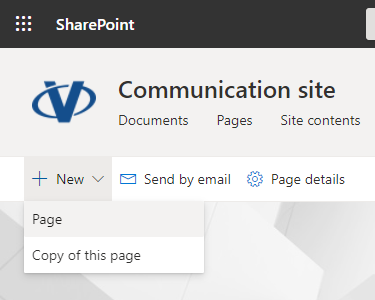
Select a page template that suits your needs and click Create.
💡 Tip
Smart Search supports a single app page. You can switch to the App tab and select Smart Search to create a new app page.
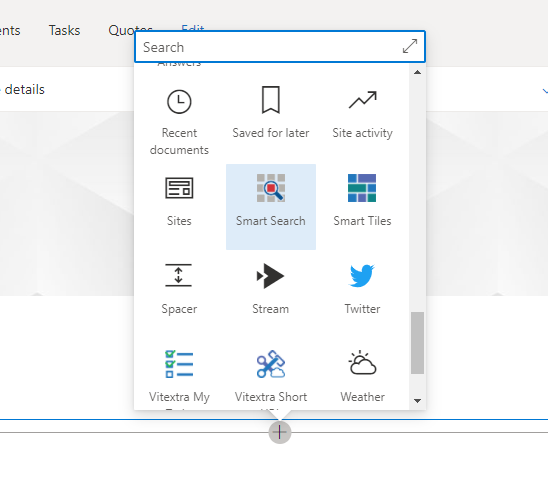
The new page opens automatically in edit mode. Hover above or below an existing section until a line with a circled plus sign appears, then click it to open the web part toolbox. Find the Smart Search web part by browsing or using the search box, and click it to add it to the page.
Web Part Configuration
After adding the web part, click the Edit web part button (the pencil icon) on its left side. A configuration pane opens on the right, where you can adjust the settings.
Data Source
In the first section, you choose the search scope and the web part's operation mode. You can search the entire tenant — including OneDrive and team sites — or limit the search to the current site collection or site.
Smart Search has two operation modes: Single Source and Multiple Sources (Tabs). In Single Source mode, you pick one built-in search source to limit the scope, and no tabs are shown. In Multiple Sources mode, users can switch between different sources using tabs.

Appearance
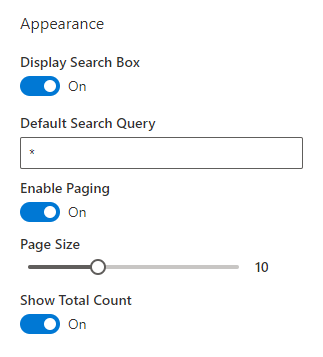
The following settings control the web part's appearance:
Display Search Box. Show or hide the search box.
💡 Tip
If the search box is empty or hidden, the Smart Search web part uses the query from the top header search bar.
Default Search Query. Query to use when the search box is empty or hidden.
Enable Paging. Show or hide pagination.
Page Size. Number of items per page.
Show Total Count. Display the total number of search results.
Filtering
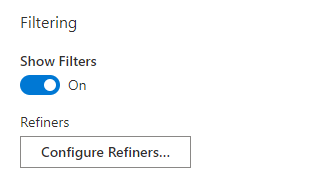
Click Show Filters to enable the refinement panel. To choose which fields are available for filtering and set their order, click Configure Refiners.
💡 Tip
When the refinement panel is enabled, users can filter search results by a tag by clicking it in the list.
Sorting
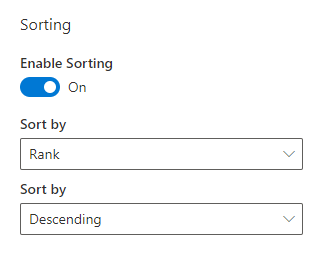
Click Enable Sorting to set the default sort order for the search results.
📝 Note
Sorting does not apply to the Popular and Recently Changed Items data sources.
Item Layout
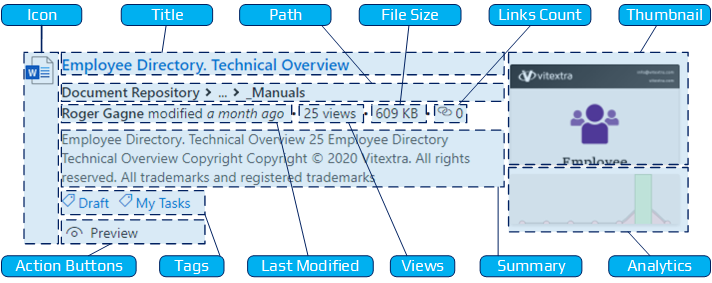
Each search result has 12 fields for displaying information. You can show or hide every field except the title, and set the summary length (from 100 to 300 characters).
Item Actions
Smart Search provides three actions users can take without opening a new browser tab:
- Download — download the item.
- Preview — open a document in a dialog window.
- Play — play video content in a dialog.
Search Settings
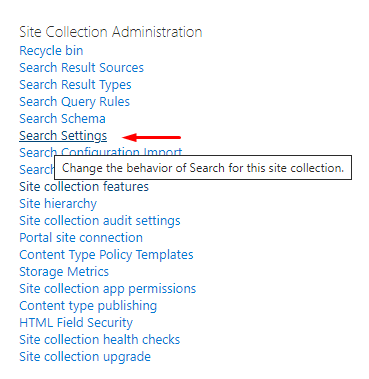
Go to site settings and select Search Settings under the Site Collection Administration heading:
Enter the server-relative URL of the new search page in the Results page URL field:
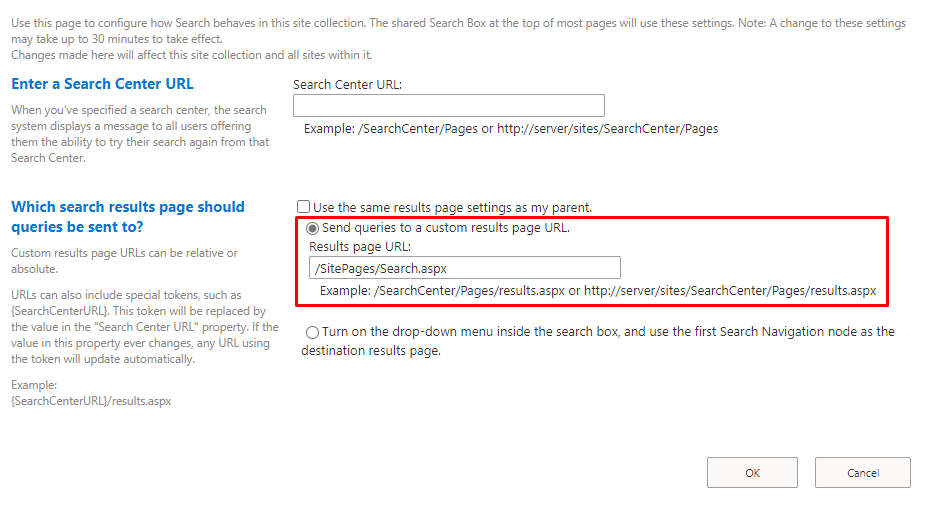
The change can take up to 5 minutes to apply. After that, SharePoint redirects all search requests to the new page.
Conclusion
The Vitextra Smart Search web part is a versatile tool for improving search in SharePoint Online and Microsoft Teams. A custom search results page gives users a tailored, efficient way to find and manage information, and features such as multiple search sources, a customizable layout, and advanced filtering and sorting make search in your SharePoint environment both more usable and more capable.