Customizing the Employee Details Pane in Employee Directory
Introduction
Employee Directory streamlines how you manage and display employee information across your organization. It offers extensive customization for the employee details pane, so you can tailor the way employee information appears to suit your needs.
This article gives a complete overview of the customization options available for the details pane in the Employee Directory.
Supported Web Parts
Employee Directory and Employee Directory (Entra ID) support details pane customization.
📝 Note
The New Employees web part does not support the details pane and instead uses a native Microsoft 365 Profile Card, which cannot be customized.
Details Pane Layout
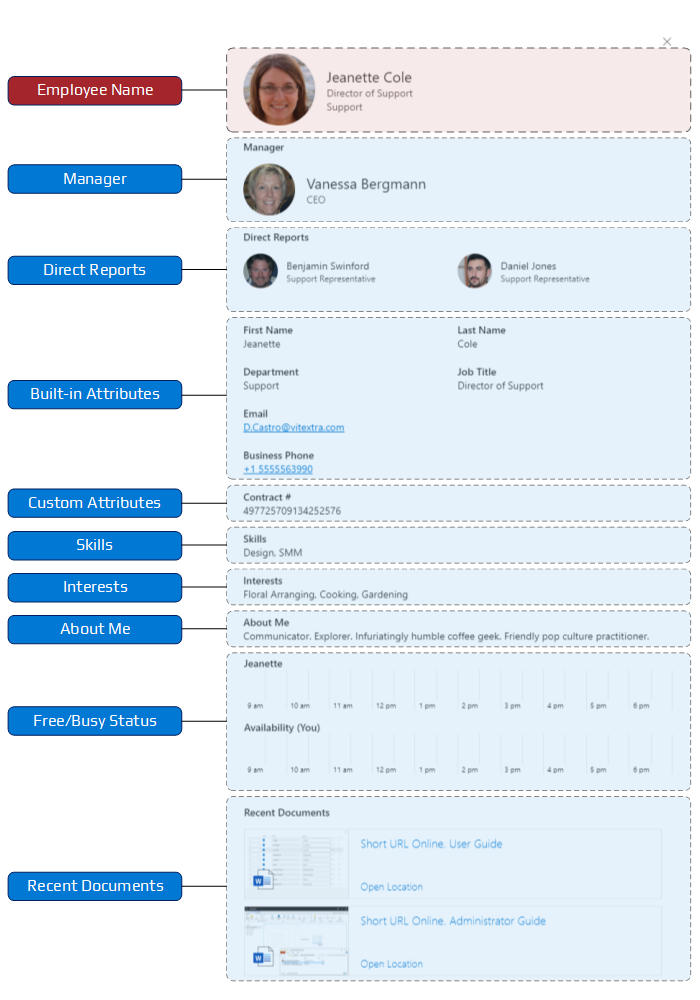
The employee details pane consists of ten sections; nine of them can be customized or hidden. Its layout is shown below:
Employee Name Section
The Employee Name section, located at the top of the pane, includes the user's profile image, display name, department, and job title. This section cannot be modified or removed.
📝 Note
The Employee Name section cannot be changed or hidden.
Manager and Direct Reports Sections
The Manager and Direct Reports sections show where an employee sits in the company's organizational structure. They can't be customized, but you can hide them. Their information comes from Microsoft Graph, regardless of the selected data source (Entra ID or SharePoint User Profile).
❗ Important
The Manager and Direct Reports sections get their information from Microsoft Graph, regardless of the selected data source. Administrators must approve the required permissions for these sections to display data.
Built-in Attributes
The Employee Directory supports twenty-four employee profile properties. The table below lists the attributes available for displaying employee information, along with how each maps to Entra ID user objects and the SharePoint Search Service schema:
| Attribute | Type | Entra ID | User Profile* |
|---|---|---|---|
| About Me | String | aboutMe | Description |
| Address | String | streetAddress | N/A |
| Business Phones | String collection | businessPhones | WorkPhone |
| Cell phone | String | mobilePhone | MobilePhone |
| City | String | city | N/A |
| Company Name | String | companyName | OrgNames |
| Country | String | country | N/A |
| Department | String | department | Department |
| String | WorkEmail | ||
| Employee ID | String | employeeId | N/A |
| Employee Type | String | employeeType | N/A |
| First Name | String | givenName | FirstName |
| Full Name | String | displayName | Title** |
| ID*** | String | id | DocId |
| Interests | String collection | interests | Interests |
| Job Title | String | jobTitle | JobTitle |
| Last Name | String | surname | LastName |
| Office Location | String | officeLocation | BaseOfficeLocation |
| Past Projects | String collection | pastProjects | PastProjects |
| Responsibilities | String collection | responsibilities | Responsibilities |
| Schools | String collection | schools | Schools |
| Skills | String collection | skills | Skills |
| State | String | state | N/A |
| User Name | String | userPrincipalName | UserName |
| ZIP/Postal Code | String | postalCode | N/A |
* Managed Property of SharePoint search schema.
** If the Title property is empty, the web part uses the PreferredName property.
*** Attribute cannot be displayed on the details pane.
The image below shows an example of the built-in attributes section. The web part does not support changing the order in which fields appear.

The Custom Attributes section contains the custom profile attributes specified in the web part settings.
💡 Tip
The Employee Directory displays built-in and custom employee attributes only when they contain data.
The Skills, Interests, and About Me sections display the corresponding information about the employee. These three attributes have their own sections because they can only appear on the details pane.
The Free/Busy Status section shows basic free/busy information from the employee's mailbox. The top of the section also shows the signed-in user's own availability for scheduling meetings.
The Recent Documents block displays the last five documents the employee created or edited.
📝 Note
The Recent Documents section displays only the documents that the currently signed-in user has permission to access.
Employee Attribute Display Options
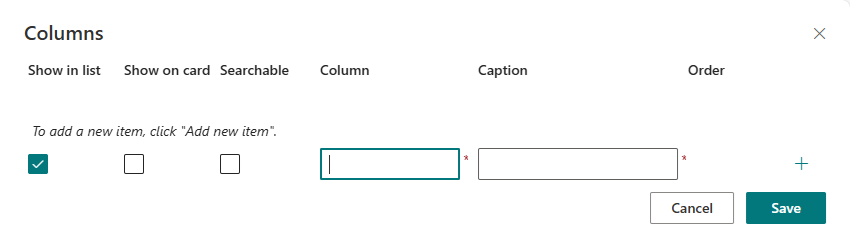
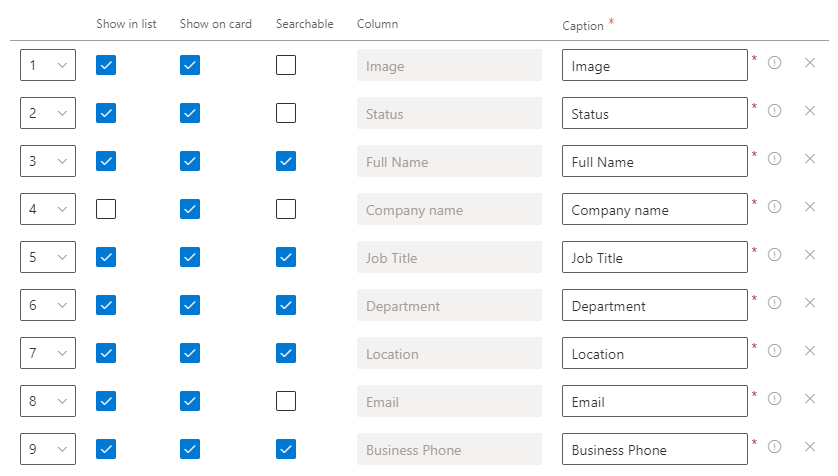
Both built-in and custom attributes offer two display options:
- Show in list — display the attribute in the list view.
- Show on card — display the attribute on the employee details pane.
💡 Tip
The Employee Directory (Entra ID) web part lets you define searchable attributes. Such attributes can be hidden so they don't appear in the list or the details pane.
Web Part Settings
To configure the employee details pane:
- Open the page in edit mode.
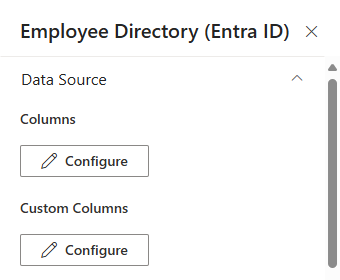
- Open the web part settings.
- Scroll to the Panel property group and choose the sections you want to display.
You configure the Built-in Attributes and Custom Attributes sections using the Columns and Custom Columns properties.
📝 Note
By default, the web parts display all built-in employee attributes on the details pane.
Summary
The Employee Directory offers extensive customization for the employee details pane, so organizations can tailor how employee information appears to meet their specific needs.
With support for both built-in and custom attributes — plus dedicated sections such as Skills, Interests, and Recent Documents — it provides a comprehensive, flexible way to present employee information and keep the most relevant details readily accessible to users.