How to Buy and Activate a Vitextra License
Introduction
Vitextra delivers modern, ready-to-use solutions for corporate portals built on Microsoft SharePoint Online, Microsoft 365, and Microsoft Teams. Our products — web parts, apps, and add-ons — extend the platform’s native capabilities, save your team time, and improve internal communication and data workflows.
Every subscription-based Vitextra product includes a free 14-day trial with unrestricted access to all features, so you can thoroughly evaluate whether the solution meets your organization’s specific needs.
Important
No license purchase is required during the trial. Once the 14-day period ends, the web parts display a notification that the trial has ended, and their functionality is blocked until a paid license is activated.

Note
No separate license is required to use Vitextra products inside Microsoft Teams. A single purchased license covers usage in both SharePoint Online and Teams.
To keep using the product after the trial ends, you need to purchase and assign a license. The complete step-by-step process is described below.
Selecting a Product and Subscription Period
Go to the page of the product you are interested in (use the Product Explorer if you haven’t decided yet).
Choose the subscription period:
- Monthly — maximum flexibility; ideal for testing long-term needs or for organizations with changing requirements.
- Annual — the most cost-effective option, with a significant discount compared to monthly billing.
Select your preferred currency. Available currencies:
USD ($), EUR (€), GBP (£), CNY (¥), JPY (¥).
Important
Once the first order is paid, the currency can no longer be changed. Please double-check your currency selection before completing the purchase.
Purchasing a License
On the product page, click Add to Cart.
Review the cart contents: product, subscription period, and quantity.
Key point: In most cases, one license per tenant (organization) is enough — regardless of the number of users or sites.
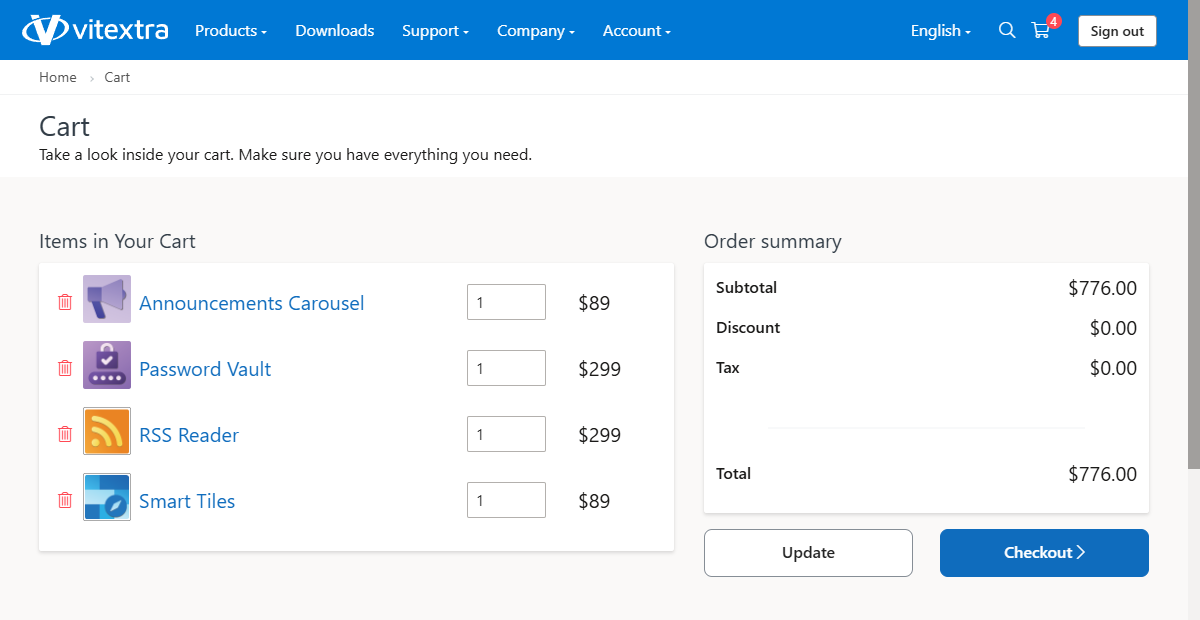
Cart before checkout Click Checkout.
Review and accept the Terms & Conditions and Privacy Policy.
Enter your billing and payment details.
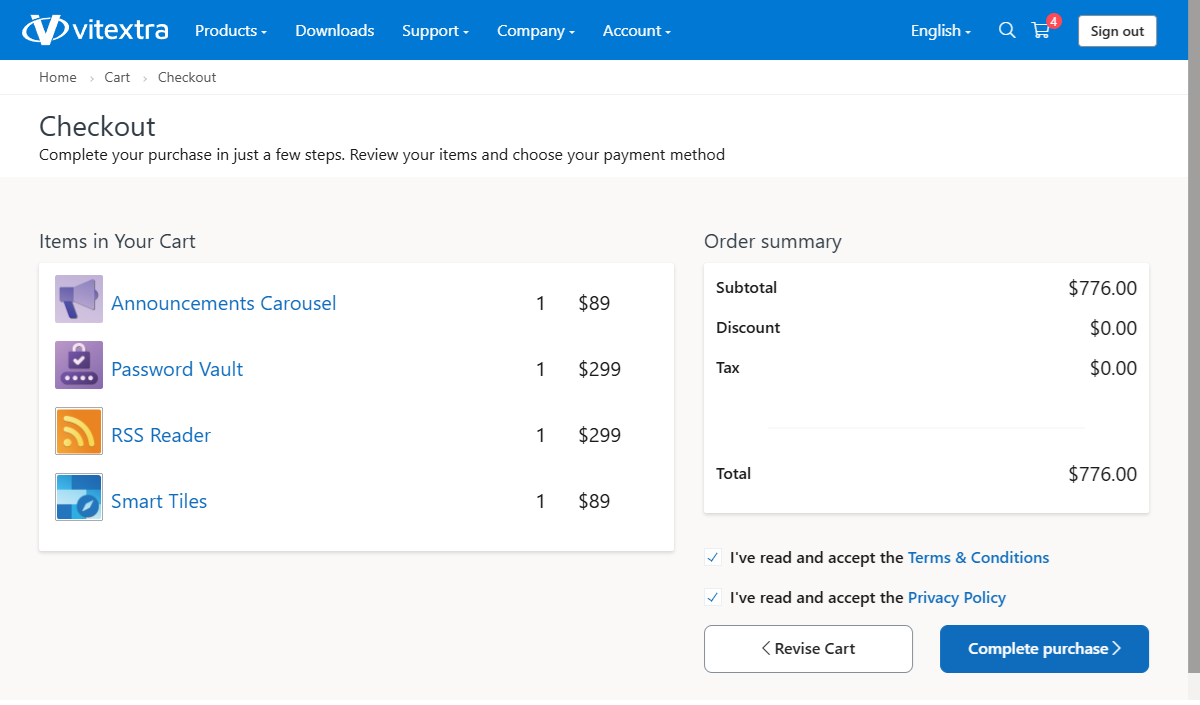
Checkout form 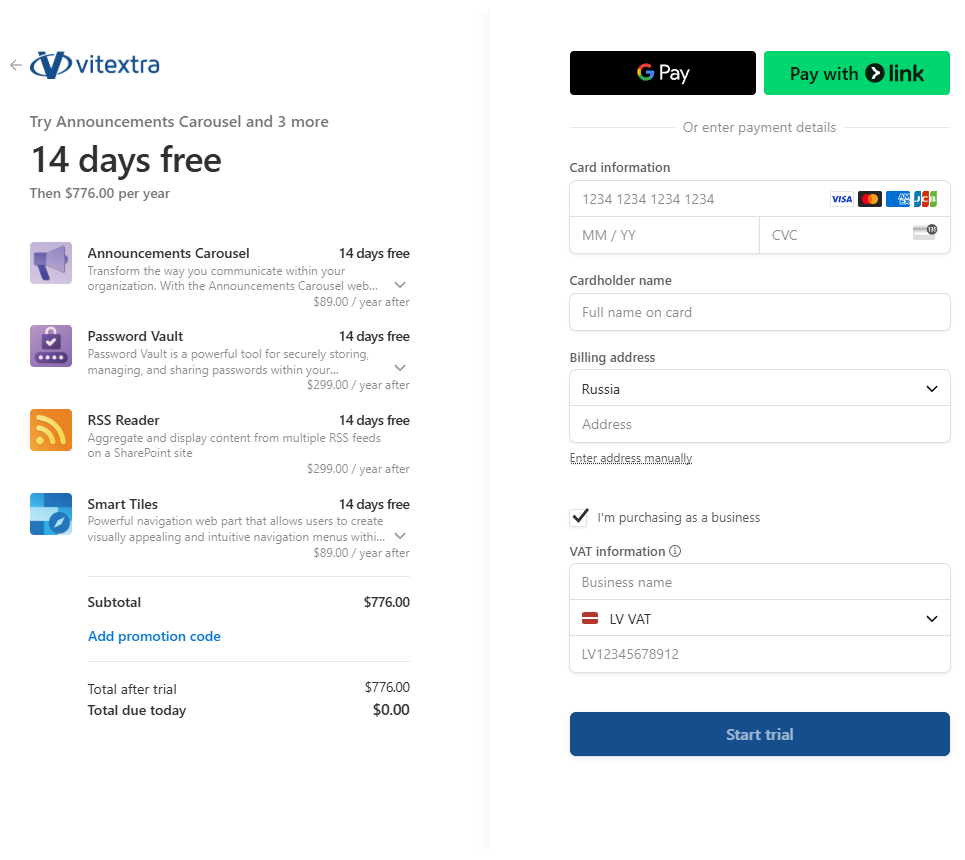
Payment details Verify the order summary and confirm the purchase by clicking Complete purchase.
All payments are processed securely through Stripe, a leading global payment platform.
Activating the License (Assigning to Your Tenant)
Sign in to your account at vitextra.com.
Go to Account → My Products (or Subscriptions).
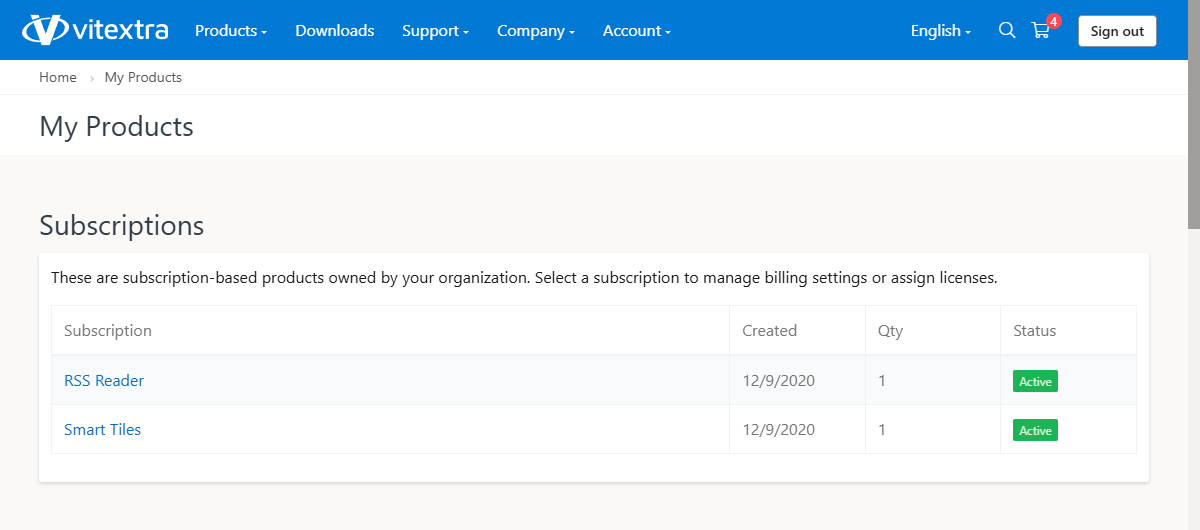
My Products / Subscriptions overview Select the relevant subscription and open its management page.
In the Assign License section, provide:
- Tenant name (any friendly name you prefer)
- Tenant ID (your unique Microsoft 365 organization identifier)
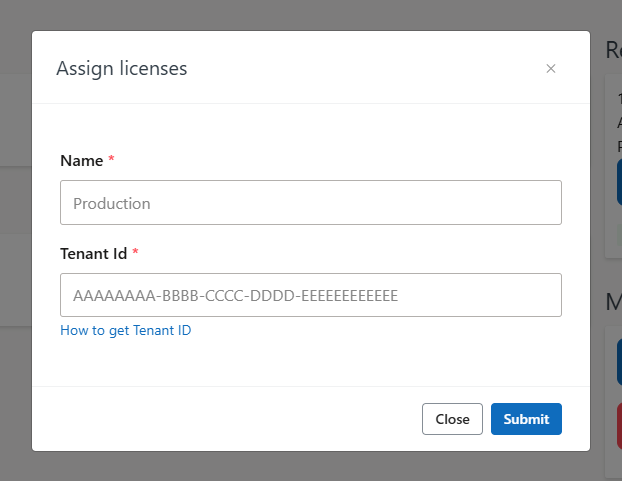
Assign license form Where to find your Tenant ID
The easiest way is to open any Vitextra web part, open its configuration panel, and go to the About section. Your current license status and Tenant ID are shown there.Helpful link
Detailed guide: How to find your Microsoft 365 Tenant IDClick Submit. The license is assigned instantly and appears in your active subscriptions list.
Important tip
The number of licenses required does not depend on the number of active users in your tenant. One license fully covers the entire tenant, regardless of organization size.
Verifying License Status
After assignment, open any page that contains a Vitextra web part, open its configuration panel, and go to the About section.
You will see the current status:
- Whether the license is active
- Subscription type
- Expiration date
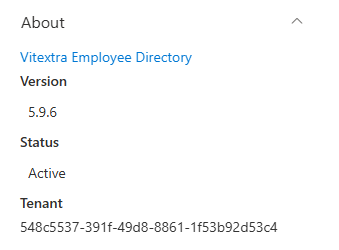
If the status doesn’t update within 5–10 minutes, refresh the page or contact support.
Summary
- All Vitextra products come with a free 14-day trial with full functionality.
- After the trial, one license per tenant is required (independent of user count).
- Choose between monthly and annual billing, with support for multiple currencies.
- Purchases are processed securely through Stripe.
- Activating a license is a quick Tenant ID assignment in your account.
- License status is always visible in the web part’s About section.