My Tasks
 Overview
The Due Date column and the Due Date menu in the command bar help you see what is late and what is coming next. Overdue dates are shown in red, and the quick filters narrow the list to overdue tasks, tasks due today or tasks due in the next seven days. This article describes the exact rules, so you know what you see, and explains where the due date of each task comes from.
The Due Date column
The Due Date column shows the date by which a task should be finished. The date is displayed in the date format of your browser. If a task has no due date, the cell is empty.
A date is shown in red when it is earlier than today. A task that is due today is not red: it becomes red from the next day, when the date is in the past. The comparison is made with the start of the current day in the time zone of your computer.
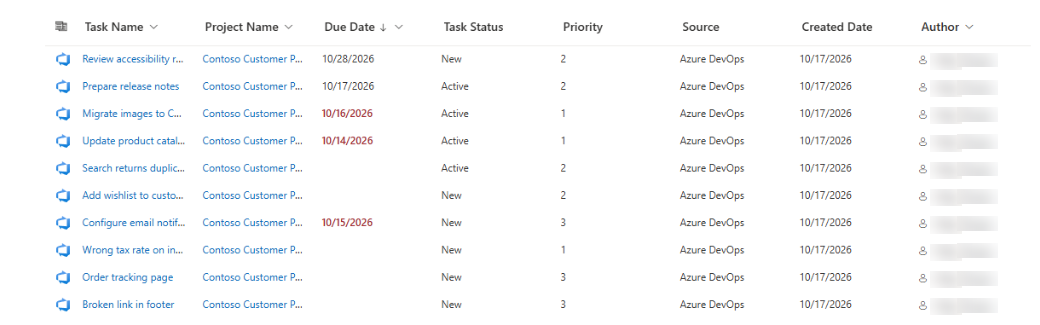
The administrator can hide the column or change its position; it is shown by default. See KB10294. My Tasks: Choosing and Arranging Columns.
The Due Date menu
The Due Date menu in the command bar is a quick filter. It has four choices, and one of them is always selected:
| Choice | Tasks that are shown |
|---|---|
| All dates | All tasks, with and without a due date. This is the default. |
| Overdue | Tasks whose due date is earlier than the start of today |
| Today | Tasks whose due date falls on today, from 00:00 until the end of the day |
| This week | Tasks whose due date falls in the seven calendar days starting with today |
Please note how This week works. It is not the calendar week from Monday to Sunday. It covers seven calendar days starting with today, so on a Wednesday it ends on the following Tuesday. Tasks that are already overdue are not included in it; use Overdue for them.
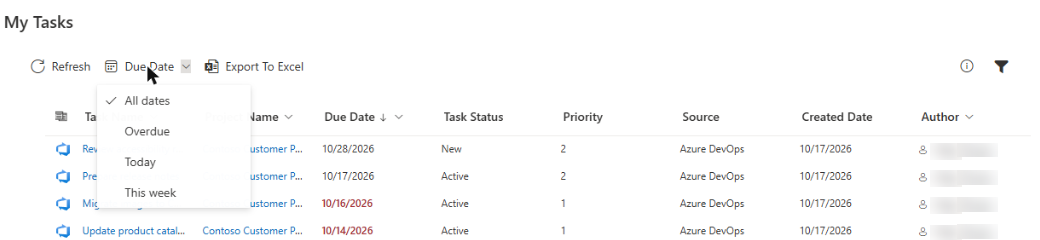
To use the quick filter, open the menu and choose an item. The list is updated at once and goes back to the first page. To see all tasks again, choose All dates.
How the quick filter works with other filters
The Due Date menu works together with the filter panel. A task is shown only if it satisfies both: the chosen due date range and the values ticked in the filter panel. For example, Overdue together with Source = Planner shows only overdue Planner tasks. Learn about the panel in KB10293. My Tasks: Filtering, Sorting and Personal View Settings.
The quick filter also affects Export To Excel: the file contains only the tasks that match the chosen range. Your last choice is remembered in your browser for the next visit.
Tasks without a due date
Many tasks have no due date, for example flagged e-mails without a reminder date or work items in a process that does not use due dates. Such tasks:
- have an empty cell in the Due Date column and are never red;
- are shown when All dates is selected;
- are not shown when Overdue, Today or This week is selected, because the web part cannot tell when they are due.
Sorting by due date
To sort the list by due date, click the Due Date column header and choose Sort A to Z (earliest dates first) or Sort Z to A (latest dates first). The sorting is applied to all the loaded tasks, not only to the current page, and is remembered in your browser.
The administrator can also set Due Date as the default sorting in the web part settings, in the group Sort by. Your own choice on the page takes precedence over this default. See KB10293. My Tasks: Filtering, Sorting and Personal View Settings.
Where due dates come from
My Tasks does not store or calculate dates. It shows the date that the source provides:
| Source | Due date comes from |
|---|---|
| Planner | The due date of the task in Planner |
| To Do | The due date of the task in Microsoft To Do |
| Outlook | The due date of the flagged e-mail, if the flag has one |
| SharePoint and Project | The Due Date column of the task list item |
| Azure DevOps | The field Due Date (Microsoft.VSTS.Scheduling.DueDate) of the work item, if your process template has it |
If a date is wrong in My Tasks, correct it in the source application and click Refresh.
📝 Note
In the Task Details panel the due date is shown only when the task has one. The date is displayed in your local format, so the same task can look different for people with different regional settings.
❗ Important
If a work item from Azure DevOps has no due date although you expect one, check that the field Due Date exists in the work item type of your process. If the field does not exist in the process, the web part simply shows work items without due dates.
💡 Tip
To prepare for a meeting, choose Overdue, click Export To Excel and send the file to your manager; then choose This week and export again. For the export, see KB10296. How to Export My Tasks to Excel. For the other sources, see KB10290. My Tasks Data Sources: Planner, To Do, Outlook, SharePoint, Project Online and Azure DevOps.