My Tasks
 Overview
The Vitextra My Tasks solution contains a second web part, Azure DevOps Query (the product name is Azure DevOps Query Viewer). It shows the result of a query that is saved in Azure DevOps directly on a SharePoint page or in a Microsoft Teams tab, so that a team can follow its work items without leaving the place where it works. The columns, the order and the filter conditions come from the query itself; you maintain them in Azure DevOps.
This article explains how to add the web part, how to connect it to an organization, a project and a query, which queries are supported and what the basic settings do. Tabs with several queries, grouping and the command bar are described in KB10305. Azure DevOps Query Viewer: Multiple Query Tabs, Grouping, Search and Column Reset.
Requirements
Before you configure the web part, make sure that:
- the My Tasks solution is installed in your tenant (see KB10035. How to Install a Vitextra Product in SharePoint Online);
- a tenant administrator has approved the Azure DevOps permission user_impersonation in SharePoint admin center > Advanced > API access (see KB10303. My Tasks: Required Permissions, Privacy and Security);
- your Azure DevOps organization is connected to the same Microsoft Entra ID tenant as your Microsoft 365 (in Azure DevOps: Organization settings > Microsoft Entra);
- you and the people who will view the page are members of the Azure DevOps organization and have access to the project;
- the query you want to show is saved in Azure DevOps, and you can open it.
❗ Important
The web part calls Azure DevOps as the signed-in user. Every viewer sees only the work items that he or she is allowed to see in Azure DevOps. If a person has no access to the project, the web part shows an error or an empty list, even though the page itself is available to that person in SharePoint.
Add the web part to a page
- Open the SharePoint page and click Edit.
- Click + (Add a new web part) in the section where the list should appear.
- Search for Azure DevOps Query and select it.
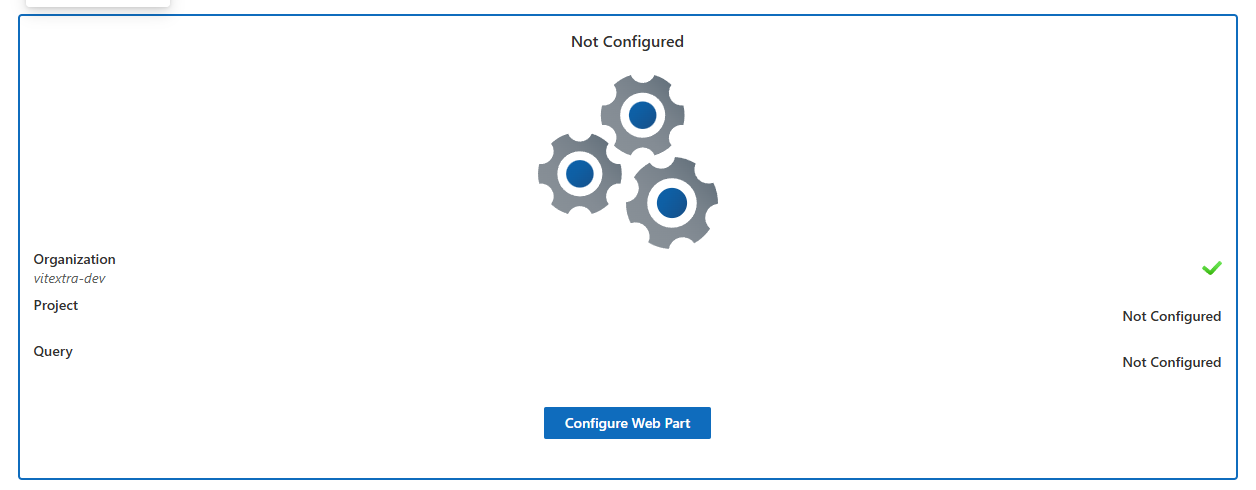
- The web part appears with the Not Configured message. Continue with the next section.
If the web part is not in the list, the solution is not deployed to the site or the App Catalog is not available for it; see KB10035. How to Install a Vitextra Product in SharePoint Online.
The Not Configured checklist
Until an organization, a project and a query have been chosen, the web part shows a checklist with three items: Organization, Project and Query. A check mark appears next to each item that has been set, so you can see what is still missing. In edit mode the checklist also has the Configure Web Part button, which opens the property pane. Readers of the page see the checklist without the button.
Connect an organization, a project and a query
Open the property pane (click Configure Web Part or the pencil icon of the web part). In the group Data Source:
- In the Organization drop-down, choose your Azure DevOps organization. The list is loaded automatically: it contains the organizations of the account that you used to sign in. Changing the organization resets the project, the query and the additional queries.
- In the Project drop-down, choose the project. The list is sorted by name. Changing the project resets the query and the additional queries.
- In the Query drop-down, choose the saved query. Queries are shown with their folder path, for example Shared Queries/Active Bugs.
As soon as all three values are set, the web part loads the work items and the checklist is replaced with the list.
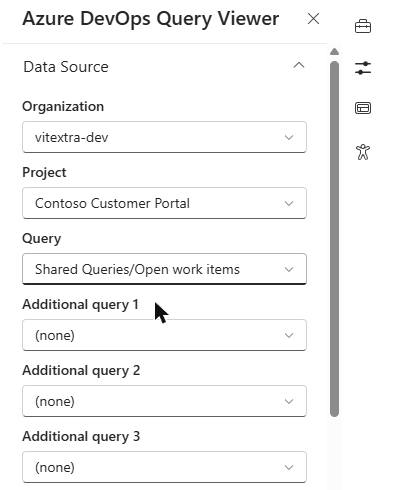
The same group contains the drop-downs Additional query 1, Additional query 2 and Additional query 3. They turn the web part into a set of tabs; see KB10305. Azure DevOps Query Viewer: Multiple Query Tabs, Grouping, Search and Column Reset.
📝 Note
If the Organization drop-down is empty, the cause is usually one of these: the organization is not connected to your Microsoft Entra ID tenant, your account is not a member of any organization, or the permission user_impersonation has not been approved yet. Ask the tenant administrator to check the API access page, and check Organization settings > Microsoft Entra in Azure DevOps.
Supported query types
The Query drop-down offers saved queries of these types:
| Query type in Azure DevOps | How it is shown |
|---|---|
| Flat list of work items | A table; you can sort and group it. |
| Tree of work items | An expandable hierarchy; sorting and grouping are turned off. |
| Work items and direct links (one-hop) | An expandable hierarchy, like a tree query. |
Folders are opened automatically, so queries from Shared Queries and My Queries are listed together with their paths. Other query kinds are not offered. A query is loaded with its own columns and its own order, and at most 1000 work items are loaded per query.
Other settings
| Group | Setting | What it does |
|---|---|---|
| Item Limit | Row Limit | A slider from 5 to 100: how many rows are shown at once. |
| Item Limit | Pagination navigation | Display items in batches of the specified size. turns the pager on. Limit the total number of items returned to the specified amount. shows only the first rows and no pager. |
| Item Limit | Position | Available when the pager is on: Bottom, Top or Top + bottom. |
| Appearance | Compact List | Reduces the row height. |
| Appearance | Command bar | Shows or hides the toolbar with Refresh, Columns and Group by. |
| Miscellaneous | Auto refresh | Off, or every 1, 5, 10, 15, 30 or 60 min. |
| Miscellaneous | Quick actions | Adds an actions button to each row. Off by default. |
| About | License information | Shows the license state of the product. |
Automatic refresh works silently in the background, only while the page is displayed in view mode and the browser tab is visible. The title of the web part is edited directly above the list.
💡 Tip
Create a dedicated query in Azure DevOps for the page, with exactly the columns that readers need, and keep it in Shared Queries. Readers can still add or remove columns for themselves in the Columns menu without changing the query. For the older step-by-step guides, see KB10209. How to Install and Configure the Azure DevOps Query Viewer Web Part and KB50003. How To Display Azure DevOps Query Results in SharePoint Online. To change work items from the list, see KB10306. Azure DevOps Query Viewer: Quick Actions (Change State, Assign, Set Due Date, Add Comment).