My Tasks
 Overview
My Tasks collects the tasks of the signed-in user from several sources and shows them in one list. If a task is not there, the reason is almost always one of a few: a data source is switched off, the task does not meet the conditions of the source, a filter hides it, or the permissions have not been approved. This guide is organized by symptom: find what you see, check the causes in the order given and apply the fix.
If a source cannot be loaded, the web part silently skips it and shows the tasks of the other sources. This is why a single missing source is a common symptom: there is no error message.
Quick checks
Start with these checks. They solve most cases.
- Click Refresh in the command bar. The list may be a few minutes old (see Data is outdated).
- Look at the Filter icon and the Due Date menu. If the icon is filled or the menu does not say All dates, a filter is hiding tasks (see Filters hide tasks).
- Open the property pane and check that the needed toggles in the Data Source group are on.
- Open the same task in its own application (Planner, To Do, Outlook, SharePoint, Azure DevOps) and check that it is assigned to you and is not completed.
- Ask an administrator whether the API permissions have been approved (see KB10303. My Tasks: Required Permissions, Privacy and Security).
The list is completely empty
| Possible cause | What to do |
|---|---|
| No data source is turned on. | In the property pane, in the Data Source group, turn on at least one source. With all toggles off the list is empty. |
| You have no tasks assigned to you. | My Tasks shows only tasks assigned to the signed-in user. Check in the source application. |
| Excluded Statuses (comma separated) hides the tasks. | In the Miscellaneous group, check the list. A status such as Active or In Progress entered by mistake hides all such tasks for all users. See KB10298. My Tasks: Excluding Statuses and Limiting the Task List. |
| A filter or the Due Date quick filter is active. | See Filters hide tasks. |
| The permissions have not been approved. | A tenant administrator approves them in the SharePoint admin center, Advanced > API access. |
| All sources failed to load. | Open the browser console (see Collecting information for support). |
One source is missing
First check that its toggle is on in the Data Source group, and that the setting is not hidden by a filter: open Filter and look at the Source group; only the sources that have tasks in the loaded list are offered there. If the source has tasks in its own application but none in My Tasks, find it below.
Planner, To Do or Outlook tasks are missing
- Permissions. These three sources use Microsoft Graph with the permission Tasks.ReadWrite. If it was not approved, they do not load. The web part only reads tasks; it never creates or changes them.
- Planner shows tasks that are assigned to you and not yet 100% complete. Being a member of a plan is not enough. The Project Name column shows the plan title; it is empty if the plan is not accessible to you.
- To Do shows tasks from all your lists except Flagged email; completed tasks are not shown.
- Outlook shows flagged e-mails, which are kept in the To Do list Flagged email; completed ones are not shown. Your mailbox must be an Exchange Online mailbox with To Do available; shared mailboxes are not included.
- The Author column is empty for To Do and Outlook tasks. This is normal.
SharePoint or Project tasks are missing
- A task is found only in a Task list (content type Task) and only if you are in its Assigned To column.
- The tasks are found with SharePoint Search, so a task that was created a few minutes ago may appear only after the next crawl.
- A site or a list that is excluded from search results ("Allow items from this site to appear in search results" is set to No) is not searched.
- Search shows only what you are permitted to see.
- Project Online and Project Server tasks are shown by the Project source. They are not duplicated in SharePoint.
- Up to 100 tasks are loaded from SharePoint and up to 100 from Project.
Azure DevOps tasks are missing or show an error
- In the field Organization, enter the organization name exactly as it is in the address
dev.azure.com/<organization>, for examplecontoso. - The permission user_impersonation for Azure DevOps must be approved by a tenant administrator.
- You must be a member of the organization and of the project, and the organization must be connected to the same Microsoft Entra ID tenant as Microsoft 365 (Organization settings > Microsoft Entra in Azure DevOps).
- Only work items assigned to you are shown. The status is the state of the work item.
- The Azure DevOps Query Viewer web part shows an error panel Oops! something went wrong. with a description and the Refresh button. Read the description: it comes from Azure DevOps. If the Organization drop-down in its settings is empty, the organization is not connected to your tenant. See KB10304. Azure DevOps Query Viewer: Setup and Connecting a Query.
Data is outdated
The last loaded list is kept in the browser tab for up to 15 minutes and is shown at once the next time the page opens; then it is refreshed silently in the background. Click Refresh to reload now. An administrator can turn on Auto refresh: the list is then reloaded every 60 seconds. SharePoint and Project tasks also depend on the search crawl.
Filters hide tasks
Your sorting, your Filter selections and your Due Date quick filter are remembered for each web part in your browser. After you return to the page, the tasks that do not match are still hidden. The Filter icon is filled when a filter is applied.
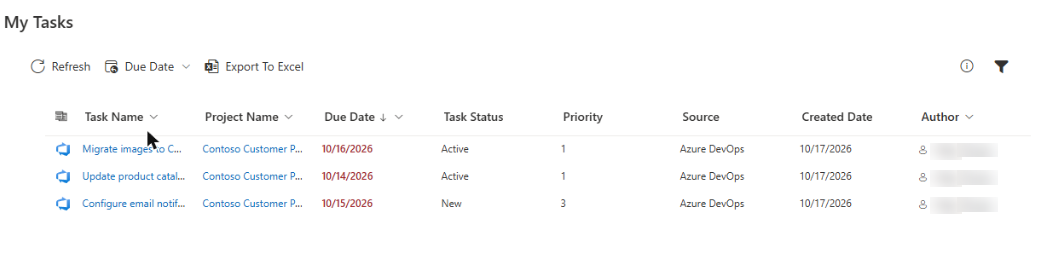
To see everything, choose All dates in the Due Date menu and clear the checkboxes in the Edit Filter Criteria panel. See KB10293. My Tasks: Filtering, Sorting and Personal View Settings.
Your settings are not remembered
Personal settings are stored in the browser (localStorage), separately for each web part, browser and device. They are lost if the site data is cleared, and may not be kept in a private (InPrivate/Incognito) window. They are not synchronized between your computer and your phone.
The trial has expired
When the trial period has ended, the web part shows a panel with the text We hope you enjoyed your free trial. Buy it now to keep it working. instead of the tasks. The status of the license is shown in the About group of the property pane (Trial version, Active, Expired, Suspended or Canceled). To restore the web part, activate a license; see KB10206. Vitextra Licensing and Account: How to Buy and Activate a License. In edit mode, a message that a new version is available means that an update can be installed; see KB10050. How to Update a Vitextra SPFx Solution in SharePoint Online.
A column is missing
If a column is not shown, an administrator turns it on in the Columns group of the property pane. Source (as text) and Tags are off by default.
Export does not work
- The Export To Excel button is unavailable while the list is loading or when there are no tasks.
- The file contains the tasks that are visible after your filters, so a filtered list gives a short file. It contains all pages.
- The file is a CSV, not an .xlsx file. If Excel puts everything in one column, use Data > From Text/CSV and choose the comma as the delimiter.
- If the browser blocks the download, allow downloads from your SharePoint site.
See KB10296. How to Export My Tasks to Excel.
Collecting information for support
If you cannot find the cause, send the following to Vitextra support:
- Version and license. In edit mode, open the property pane and copy the values of Status, Tenant and Version from the About group. If you do not know your tenant ID, see KB10034. How to Find Your Microsoft 365 Tenant ID for Vitextra Licensing.
- Which sources are on and which one is missing, with an example of a task that should be shown.
- Console messages. Open the page, press F12, go to the Console tab, click Refresh in the web part and copy the red messages. The Network tab shows failed requests (status 401, 403 or 404, or CORS errors).
- A screenshot of the web part with the filter state visible and the browser you use.
❗ Important
Before you send a screenshot or console text, remove confidential data such as task titles, names and tokens. Never send passwords or access tokens.
📝 Note
My Tasks does not store your tasks on Vitextra servers: it loads them in your browser with your own permissions. If a task is not visible to you in the source application, My Tasks cannot show it.
💡 Tip
The answers to the most frequent questions are in KB10308. My Tasks: Frequently Asked Questions. For the list of sources and their conditions, see KB10290. My Tasks Data Sources: Planner, To Do, Outlook, SharePoint, Project Online and Azure DevOps.