How To Add Employee Directory app to Microsoft Teams
Most people spend their working day inside Microsoft Teams rather than on a SharePoint page, so it makes sense to bring the Employee Directory web part directly into Teams. Adding it as a personal app pins it to the app bar on the left side of Teams for that user — available from any chat, call, or team, not tied to a single channel. From there, anyone can search for a colleague, see their job title, department and contact details, and reach out to them, all without switching apps.
This guide assumes that the Employee Directory app package has already been deployed to your SharePoint App Catalog and made available to Teams. If you have not installed the product yet, start with KB10035. Installing a Vitextra Cloud Product, then come back here to add it as a personal app.
📝 Note
You need permissions to manage the SharePoint App Catalog (typically the SharePoint Administrator role) to complete the sync step below. Adding an already-synced app as a personal app, on the other hand, requires no special permissions at all — any user can pin it for themselves from the Teams app store, as long as your tenant admin allows custom apps.
1. Go to SharePoint Admin Center
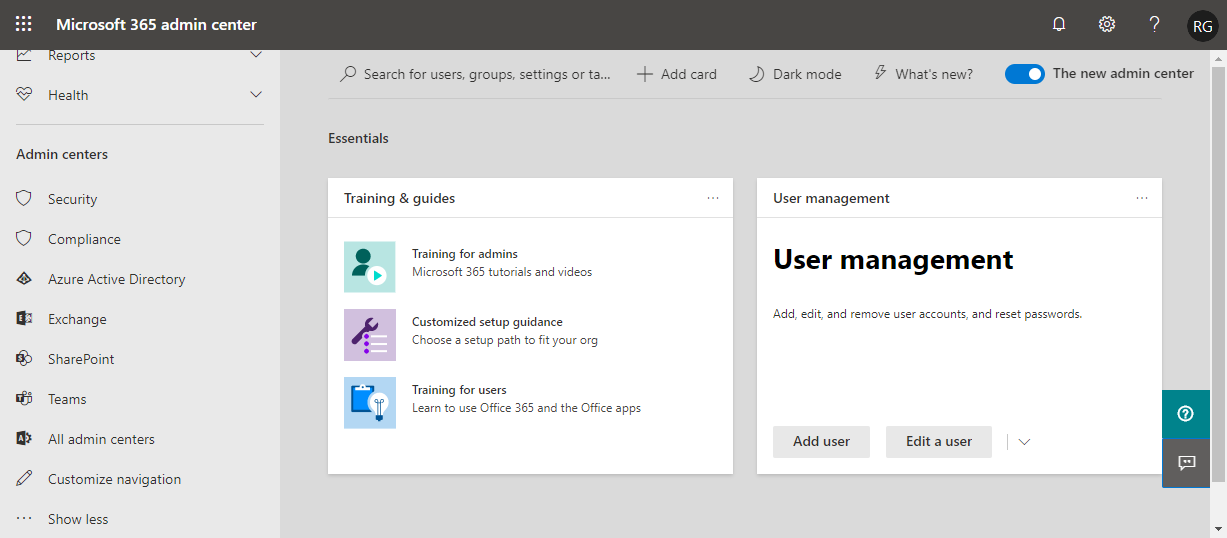
Go to SharePoint Admin Center Open Microsoft 365 Admin Center and sign in with an account that has been assigned the SharePoint Administrator role. Click SharePoint under the Admin centers heading to open the SharePoint Admin Center.
2. Open SharePoint App Catalog
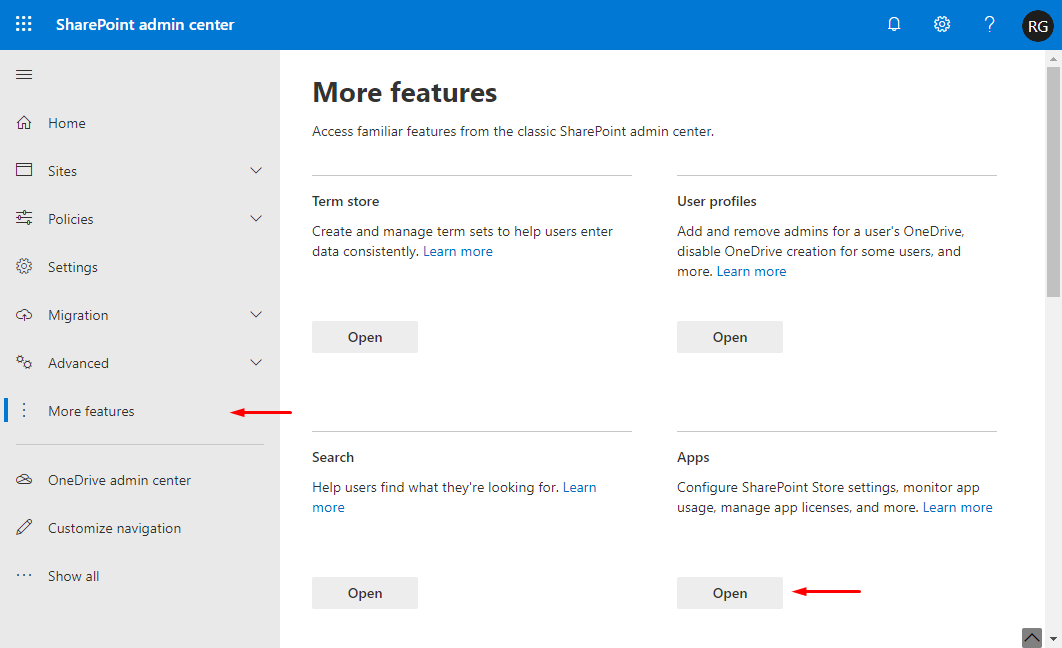
Open SharePoint App Catalog Go to More features in the left navigation menu and click the Open button under the Apps heading. In the new window, go to App Catalog and select Apps for SharePoint on the quick launch menu.
❗ Important
If you do not have an App Catalog yet, you need to create one first. Microsoft describes the process in Use the App Catalog to make custom business apps available for your SharePoint environment.3. Sync Employee Directory App to Teams
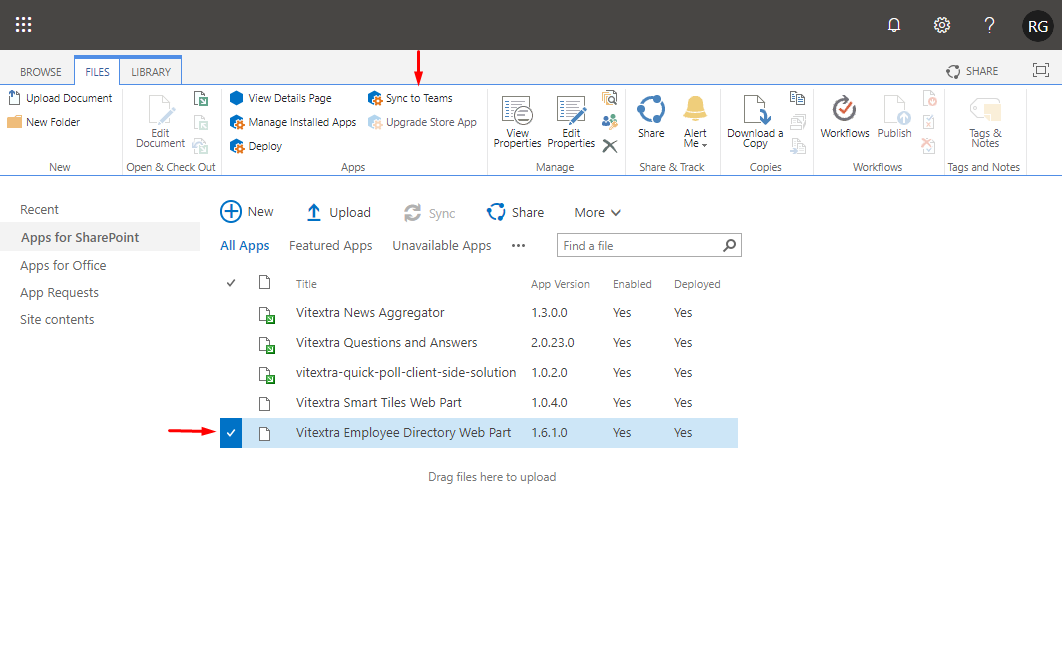
Sync Employee Directory App to Teams In the list of Apps for SharePoint, select Employee Directory and go to the FILES tab, then click Sync to Teams. When the operation completes, a notification message — Successfully synced teams solution — appears in the top-right corner of the page. This step publishes the Teams app package that corresponds to your SharePoint app, so the same permissions and updates apply to both.
4. Add Employee Directory to Teams tab
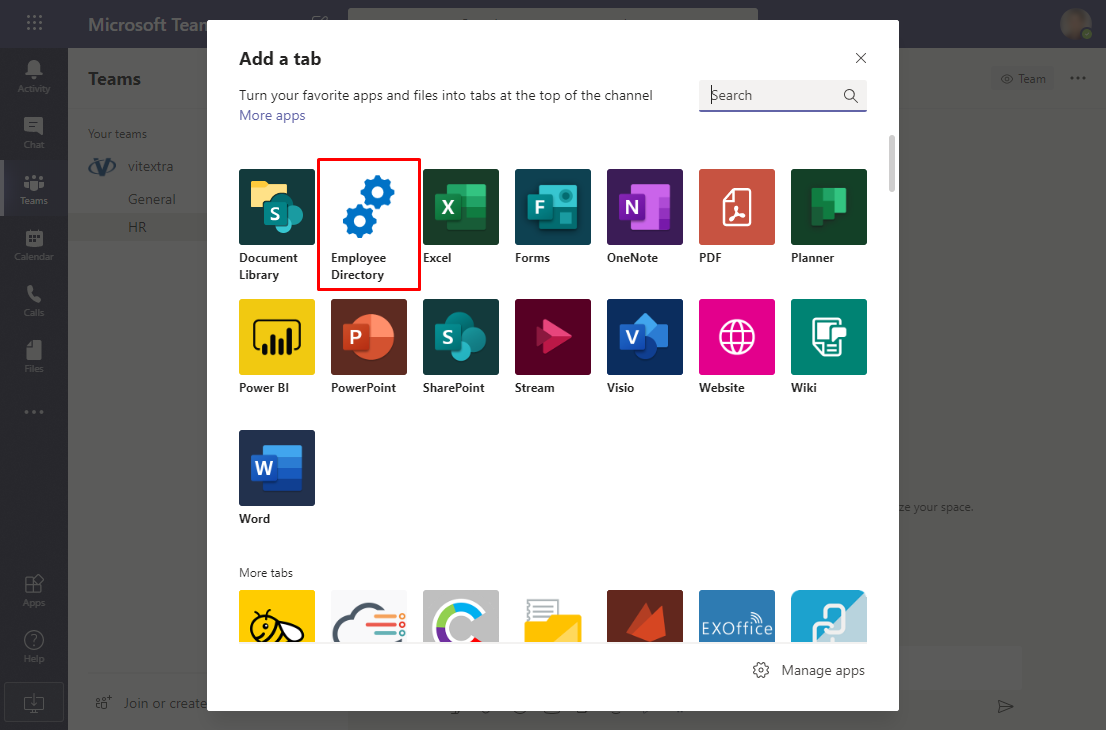
Add Employee Directory to Teams tab Open the Microsoft Teams app and go to the channel where you want to add Employee Directory. Click the plus sign to add a new tab and select Employee Directory from the list of available applications. Confirm the operation with the Save button in the confirmation dialog.
📝 Note
You can add Employee Directory as a tab in as many channels and teams as you need — each tab can be configured independently, so, for example, an HR team's channel can point to a different view than a general company channel.5. Configure Employee Directory
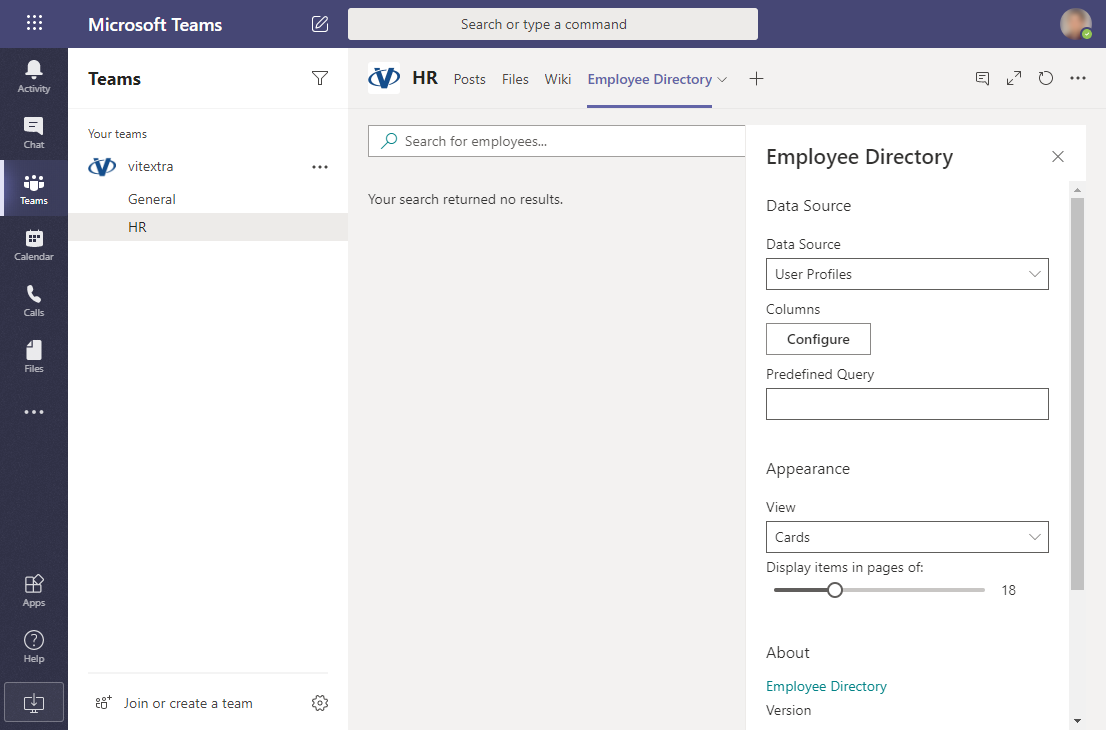
Configure Employee Directory On the new tab, configure the app. You can choose the data source (User profiles or Azure AD), the view of search results (Details or Cards), and other options described in the web part's property pane. Close the configuration pane to see the result.
💡 Tip
For a full walkthrough of every property pane option, see KB10213. Employee Directory: A Quick Tour for End Users and KB10199. Customize Employee Details Pane.
With Employee Directory pinned as a Teams tab, colleague search becomes a one-click action for anyone in the channel, instead of a separate trip to a SharePoint page. Because the tab uses the same underlying data source as the SharePoint web part, both stay in sync automatically — there is nothing extra to maintain. If you also want new hires to be visible the moment they join, take a look at KB10207. Boost Onboarding with the New Employees Web Part.
How to
Step-by-step guides