List Filter
 The Vitextra List Filter web part for SharePoint lets you export list data to a Microsoft Excel file. The export always includes the complete list, no matter how many items it contains.
Prerequisites
Before you can export, activate the Vitextra: List Filter site collection feature and add the List Filter web part to the list view or the page where the list is displayed.
For details, see the Configure List Filter article.
Export Feature
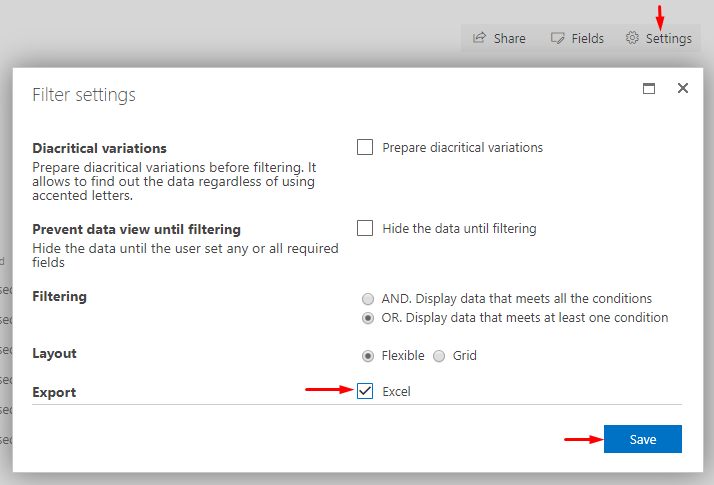
To show the Export button, click Settings on the filter panel, select Excel under the Export heading, and click Save:
Export List Data
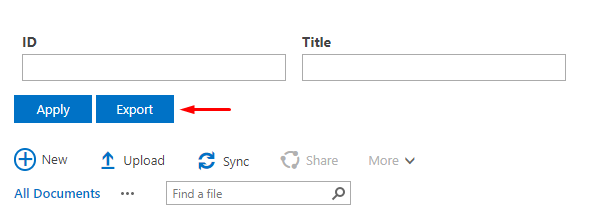
To export the list data to Excel, click Export on the filter panel:
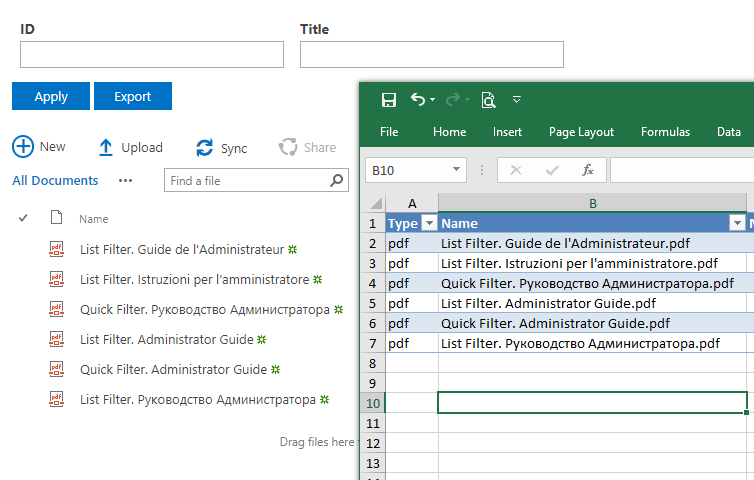
The exported file contains the same columns as the current view:
📝 Note
Vitextra List Filter exports data according to the view settings, the user's permissions, and any filters currently applied.