List Filter
 This article describes how to filter data in a SharePoint list or document library by date range using the Vitextra List Filter web part.
Introduction
The built-in SharePoint filter can't filter a list or document library by date range. Its native functionality is limited to choosing an exact date from the existing values:
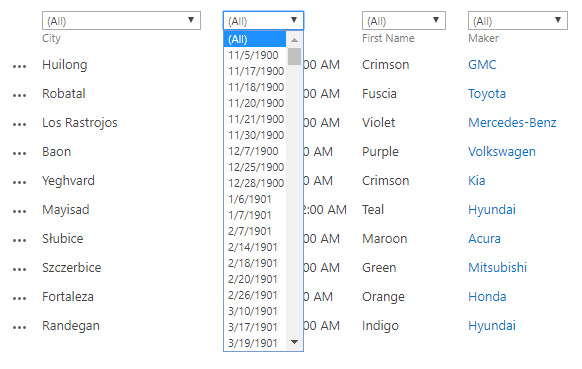
In everyday work, you often need to filter a list or document library by a date range. The usual workaround is to create a dedicated view — but the more cases you have, the more views you end up maintaining.
Vitextra List Filter lets you get rid of those extra views and work more efficiently.
Prerequisites
Before you can use the date range filter, activate the Vitextra: List Filter site collection feature and add the List Filter web part to the list view or the page where the view is located.
For details, see the Configure List Filter article.
Add Column to the Filter Panel
Click Fields to open the column settings dialog:
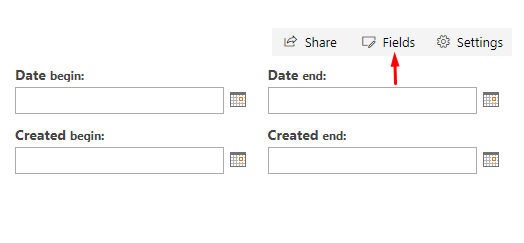
📝 Note
If the settings buttons don't appear on the web part, check your permissions and try again.
In the settings dialog, select the DateTime columns you want to filter by and choose the Date range filtering control:
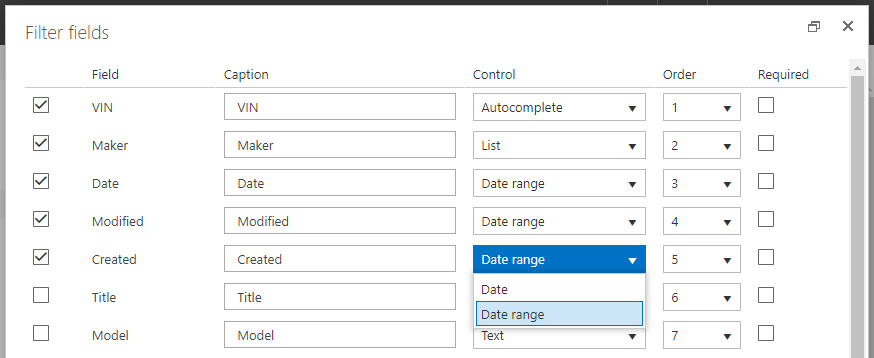
Click Save and refresh the page to see the changes.
Filter by Date Range
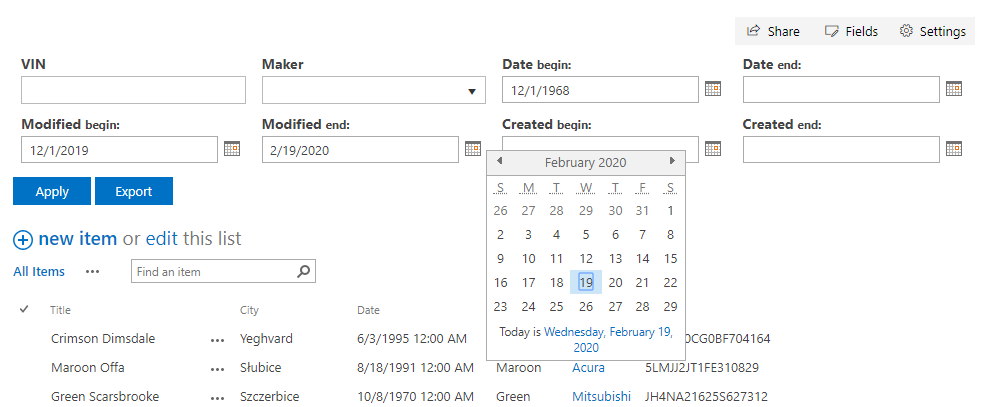
Once you've configured the filter, the panel shows two date pickers for each DateTime column you selected:
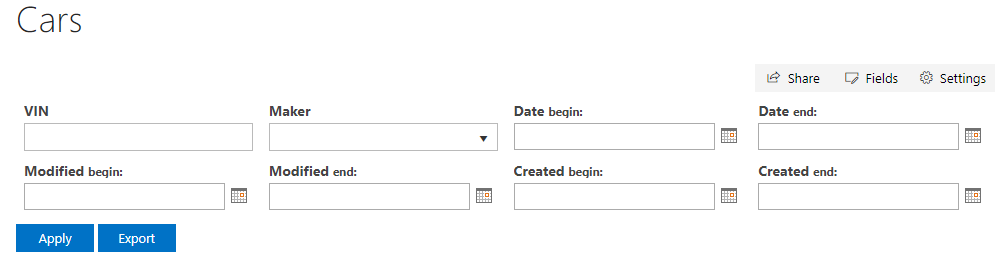
Enter a date or pick one with the SharePoint date picker, then click Filter to apply it.
📝 Note
You can specify both the begin and end values, or just one of them, to filter the data.