Introduction
Vitextra offers a range of SPFx-based products that extend the functionality of SharePoint Online and Microsoft Teams.
This article is a step-by-step guide to installing a Vitextra product in your SharePoint Online environment, including the prerequisites and permissions you need for a smooth installation.
Prerequisites
Environment
Vitextra SPFx-based products can be installed only on Microsoft 365 (SharePoint Online and Microsoft Teams).
❗ Important
Vitextra SPFx products cannot be installed on SharePoint on-premises 2016/2019.
Required Permissions
Tenant Admin Access
You must have the SharePoint Administrator role in your Microsoft 365 tenant. This role gives you the authority to manage the App Catalog and install apps across the SharePoint Online environment.
App Catalog Permissions
Within the App Catalog site, you need Full Control permissions. This lets you upload, manage, and delete apps, including SPFx packages.
User Permissions for End Users
While not directly related to installation, make sure the users who will use the SPFx web parts have permission to access the site and its content. This usually means at least Read permission on the site where the web part is deployed.
Installation Package
First, download the product package. You can get it from the Vitextra Download Center or Microsoft AppSource.
💡 Tip
The Download Center often provides the latest updates and features more quickly than AppSource.
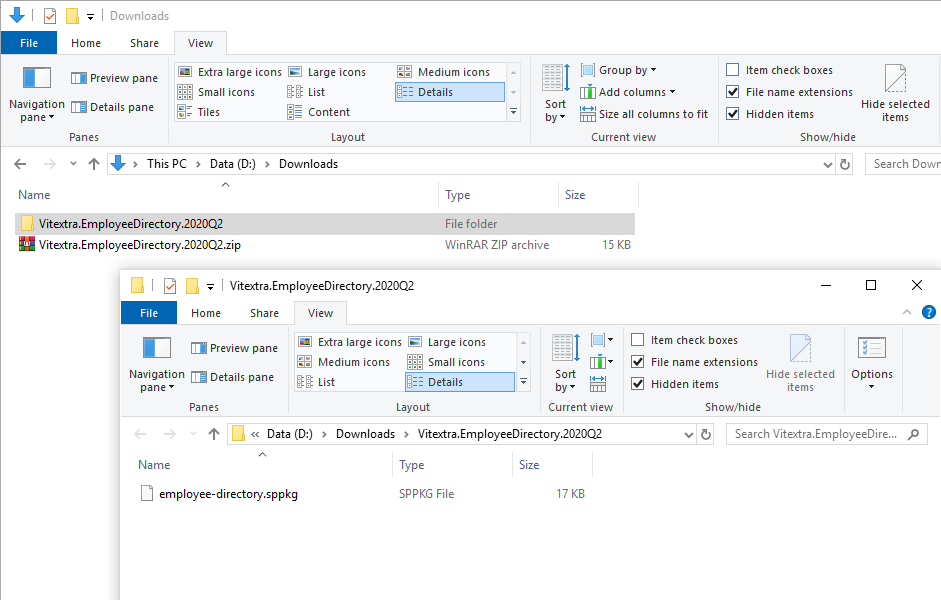
Download the product's ZIP file (*.zip) and extract it somewhere on your computer.
Installation
Step-by-step instructions:
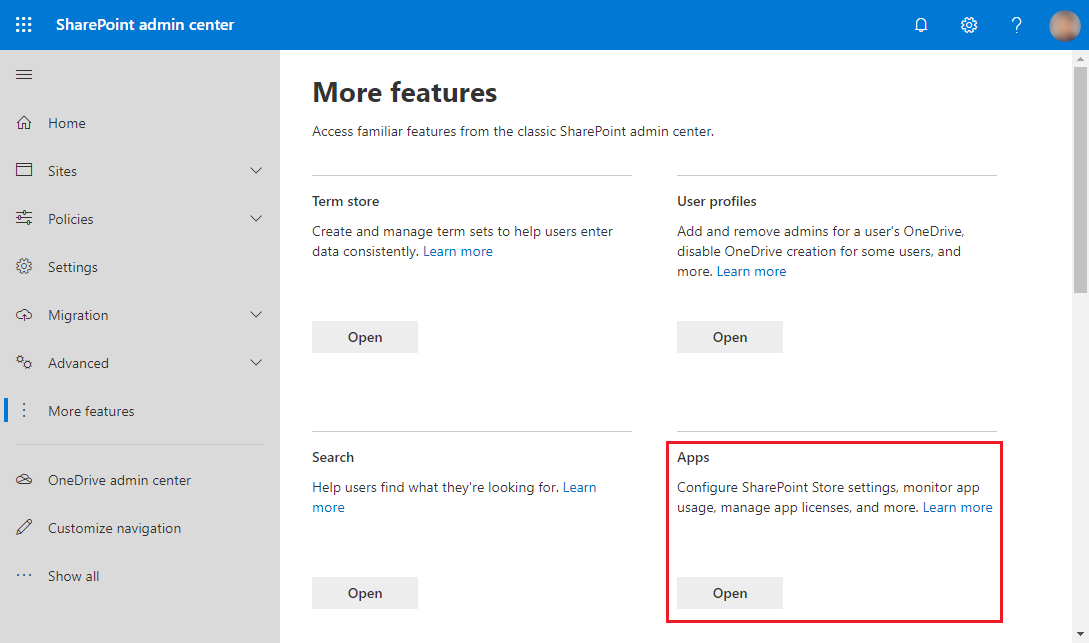
1. From the Microsoft 365 admin center, navigate to the SharePoint admin center.
2. Go to More Features and click the Open button under the Apps heading:
3. Click App Catalog to manage your SharePoint apps.
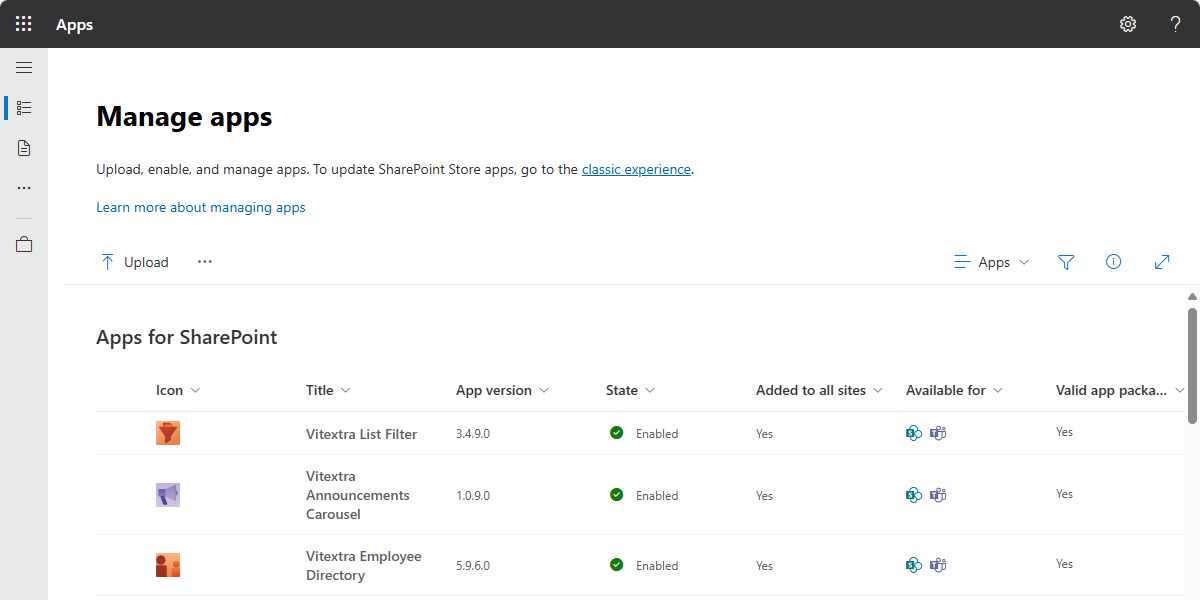
4. Click the Upload button and select the extracted .sppkg file.
❗ Important
Make sure to extract the .zip archive before uploading. You must upload the extracted .sppkg file, not the .zip file itself.
5. After you upload the package, SharePoint Online prompts you to trust the solution — a security measure to ensure the app meets your organization's compliance standards. Click Install to confirm the installation.
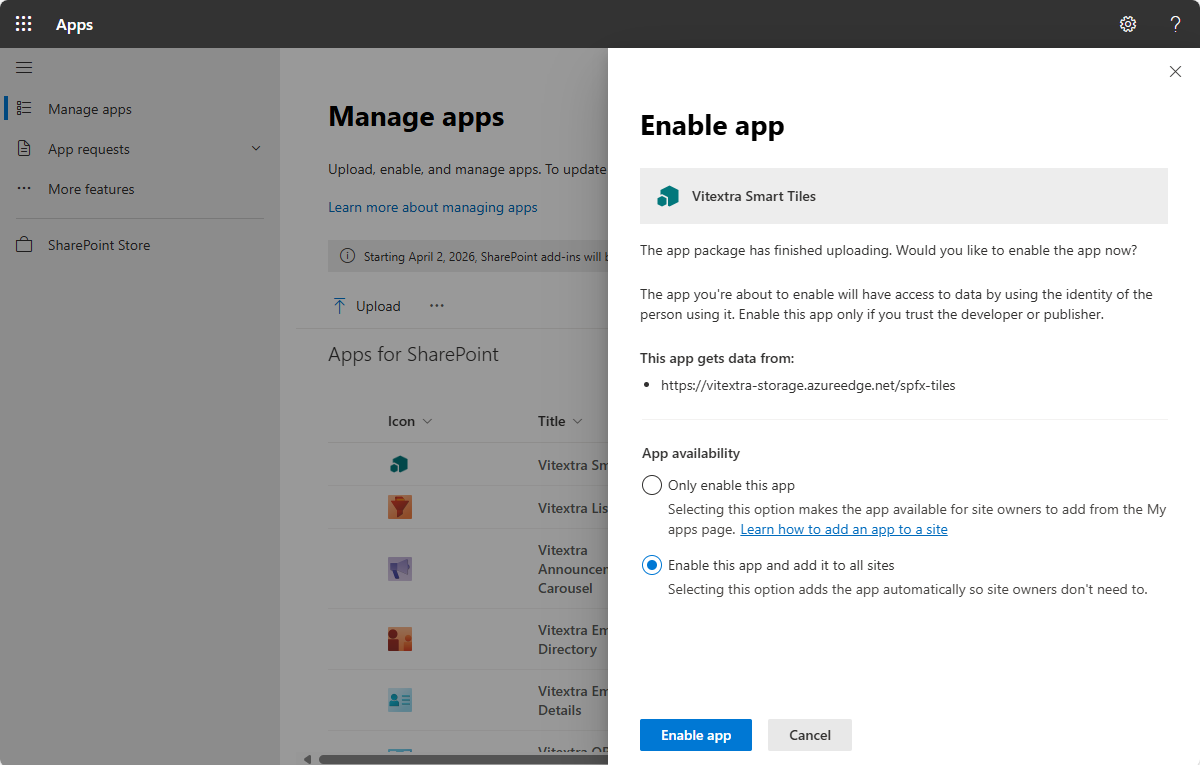
6. Once deployed, the package appears in the list of installed client-side packages, confirming a successful installation.
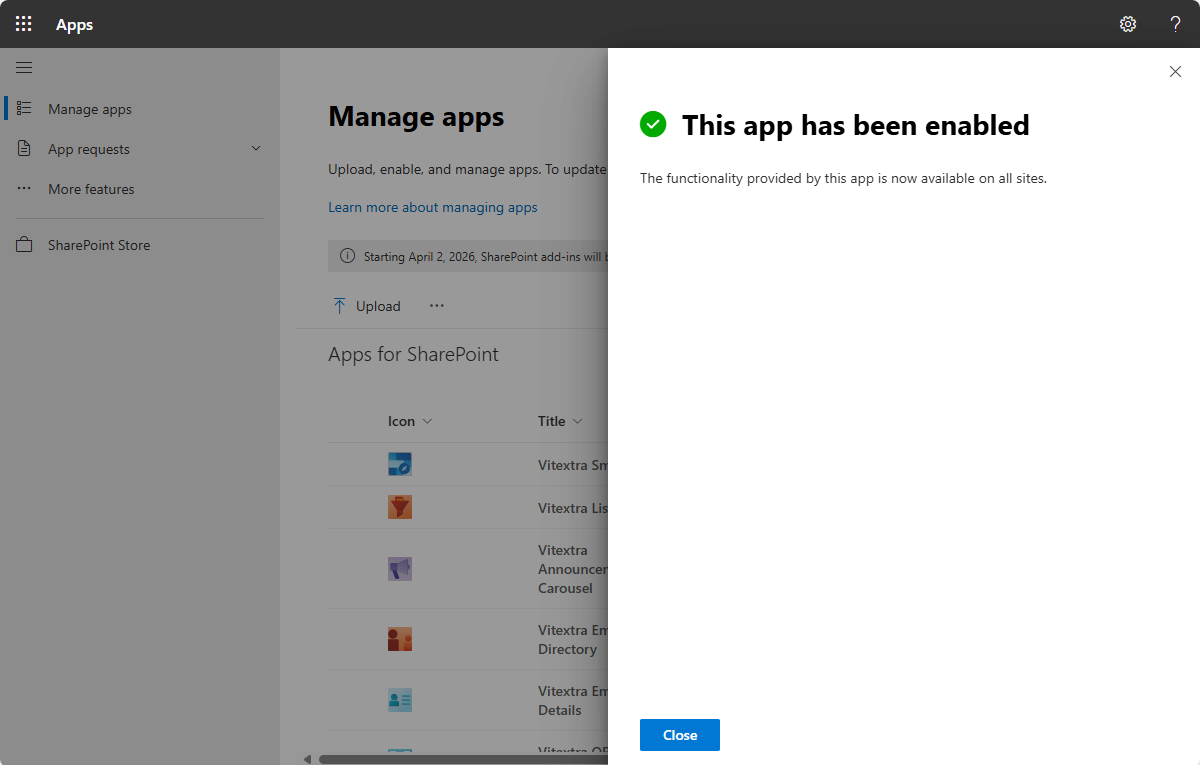
API Access
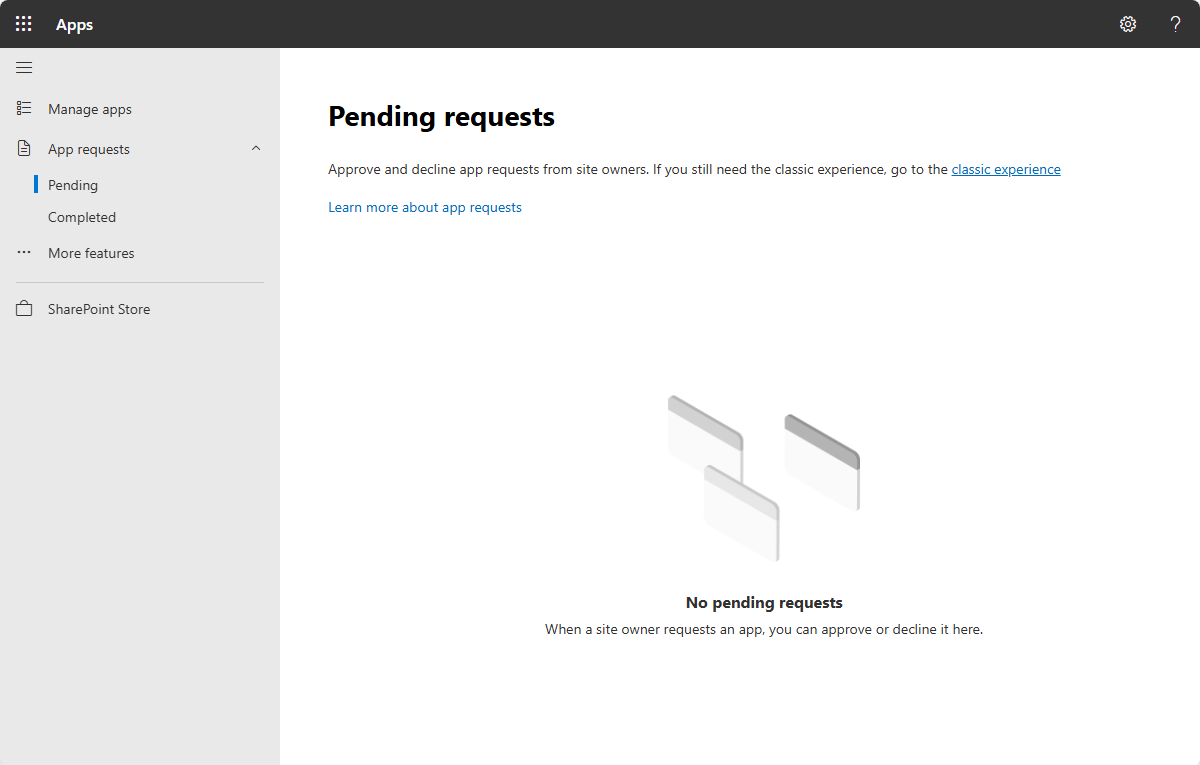
To grant the installed app the permissions it needs to access the API, go to Pending under the App Requests heading in the left navigation menu.
There, you can approve any API access requests generated during installation.
Summary
Installing a Vitextra product in SharePoint Online comes down to a few key steps: confirming the right environment and permissions, downloading and uploading the installation package, and approving any API access requests.
With these steps done, the Vitextra solution is integrated into your SharePoint environment and ready to use.