Number Generator
 Vitextra Number Generator can automatically generate numbers or names in a SharePoint document library or list.
📝 Note
Number Generator supports specific column types such as ID and Lookup, as well as custom types.
Prerequisites
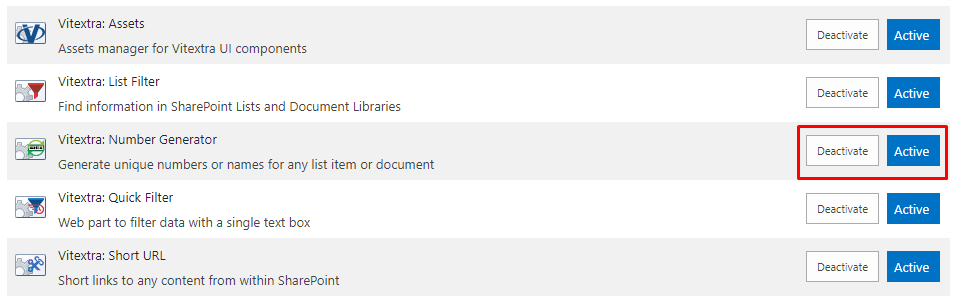
To set up and use formulas, make sure the Vitextra: Number Generator feature is activated on the site collection.
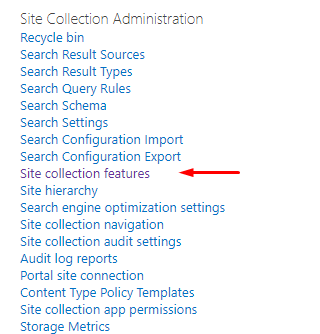
Go to Site Settings and click Site collection features:
Scroll down to the feature and click Activate if it isn't activated yet:
Numbering Schemes
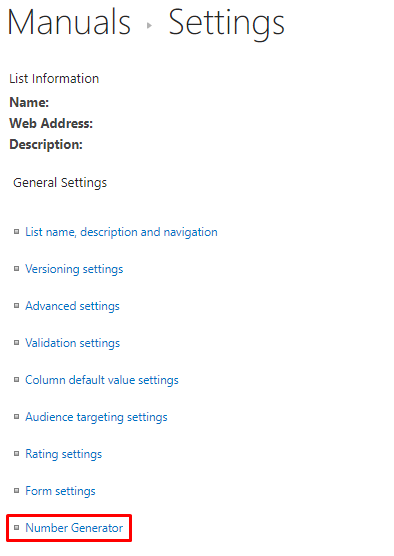
Column value generation is managed by numbering schemes defined at the list or library level. Go to the settings of the list or library where you want to apply column auto-population, and select Number Generator under the General Settings heading:
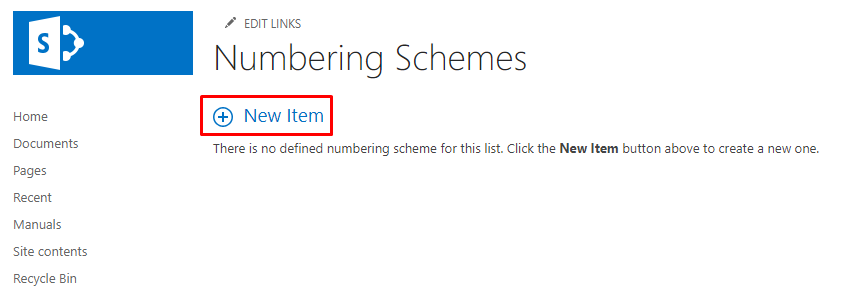
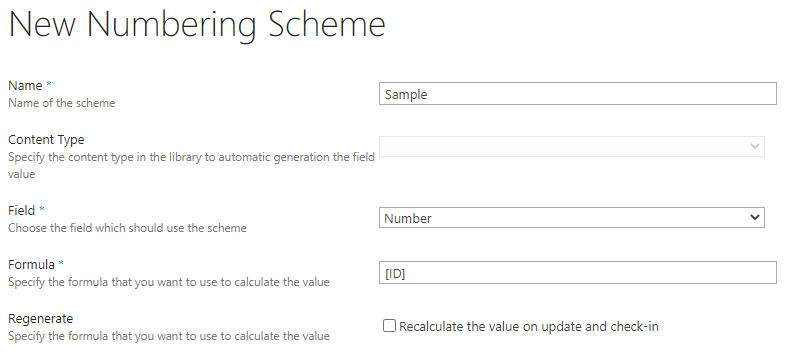
Use this list to manage the numbering schemes for the list or library. Click the New Item button to create a new numbering scheme.
The numbering scheme form contains the following fields:
- Name
- Content Type
- Field
- Formula
- Regenerate
📝 Note
The Content Type field is greyed out if content types are disabled for the list or document library.
Formula Format
The numbering formula supports three types of data:
- Text
- Column
- Sequence
To reference a Column, wrap its display or internal name in square brackets:
[Column Name]
To reference a Sequence, wrap the sequence name in square brackets with a leading "!" symbol:
[!Sequence Name]
All other text in the formula appears as-is in the result.
Sample formula:
ID: [ID]. Created at [Created:MM/dd/yyyy]
Result of the formula above for an item created on 4/12/2020 with ID = 1:
ID: 1. Created at 04/12/2020
Samples
For this demo, we use a document library with the following custom fields:
- Product. Single line of text
- Status. Choice
- Publish Date. Date and Time
- Number. Single line of text
The sample formulas below populate the Number column in the document library.
Sample #1. Populate column with ID field
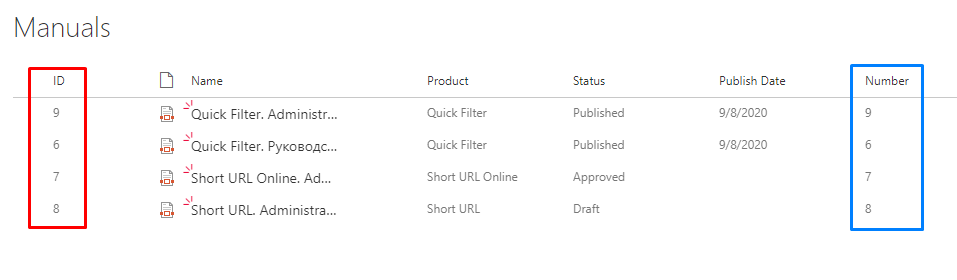
A numbering scheme formula that populates the column with the ID field:
[ID]
Result in the document library:
You can combine multiple fields to populate the column value:
[ID].[Status]

Sample #2. Format Numeric Field
Number Generator supports formatting. To define a field's format, specify it after a colon: [Field:Format]. Supported format specifiers:
| Format Specifier | Name | Description |
|---|---|---|
| 0 | Zero placeholder | Replaces the zero with the corresponding digit if one is present; otherwise, zero appears in the result string. |
| # | Digit placeholder | Replaces the "#" symbol with the corresponding digit if one is present; otherwise, no digit appears in the result string. |
| . | Decimal point | Determines the location of the decimal separator in the result string. |
| , | Group separator | Inserts a localized group-separator character between each group. |
💡 Tip
For more details about numeric formats, see the Custom numeric format strings article.
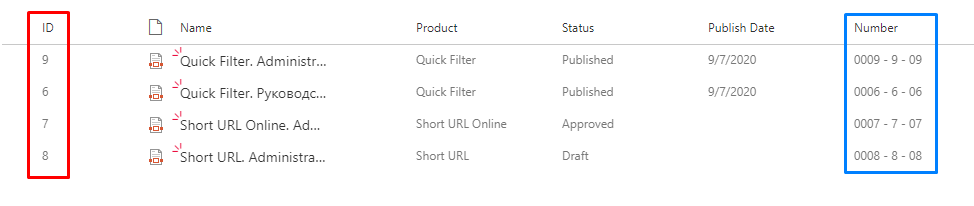
Format a column using the ID field repeated in different formats:
[ID:0000] - [ID:####] - [ID:##00]
Sample #3. Format Date Field
You can use the same approach to format a date column.
Format a date column (Publish Date) in different formats:
[Publish_x0020_Date:MM/dd/yyyy] - [Publish_x0020_Date:yy-MM-dd-HH-mm-ss]

💡 Tip
For more details about date formats, see the Custom date and time format strings article.
Sample #4. Reference Sequence
Number Generator supports cross-site sequences to generate unique numbers. To reference a sequence in a formula, use its name with a leading !:
[!ManualSequence]

Sample #5. Use System Fields
Number Generator lets you populate a column with system field values. Some of the system fields are listed in the table below:
| Field | Description | Examples |
|---|---|---|
| File_x0020_Type | Extension of the file | docx, pdf |
| UniqueId | Unique identifier of the item | 95fed722-c225-4f02-8c8d-7b0515e0777f |
| FileSizeDisplay | Size of the file | 616311 |
| ContentVersion | Version of content of the file | 2 |
| _UIVersionString | Version of the item | 15.0 |
| Author | User who created the item | John Harrison |
| Editor | User who last modified the item | Henry McDavid |
[Author].[Created:yyyy] v.[_UIVersionString]